
Welcome to OCHQ Staff Meeting Room Booking Guide
This guide will help you:
You will find step-by-step instructions, including:
- Opening Outlook and creating a meeting
- Filling in meeting details
- Selecting the appropriate meeting room
- Confirming your Meeting Room booking
- Check schedule in Calendar
1. Open Outlook and Create a Meeting with Appointment
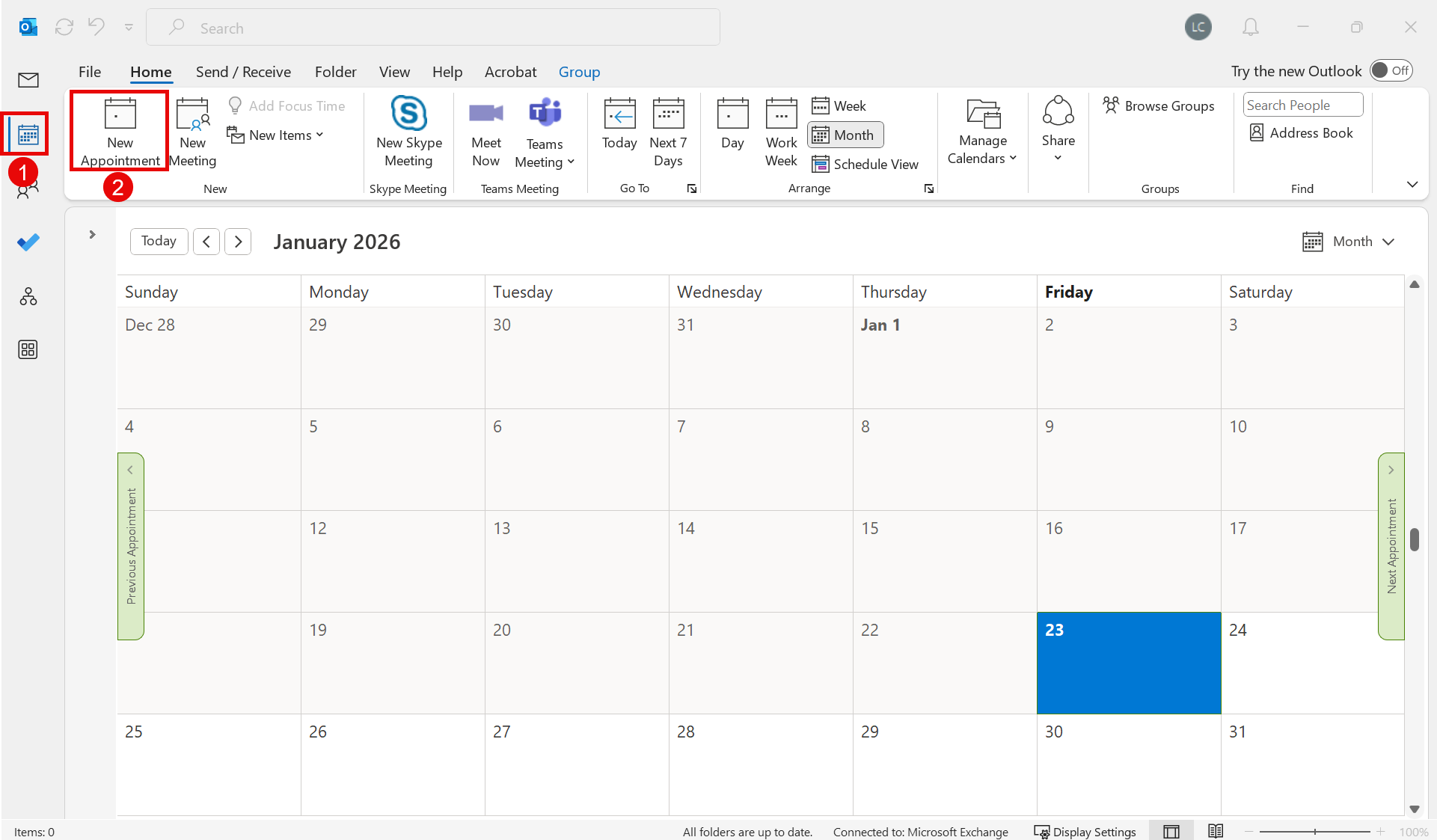
- Click on the Calendar icon
- Click New Appointment
2. Fill in Meeting Details
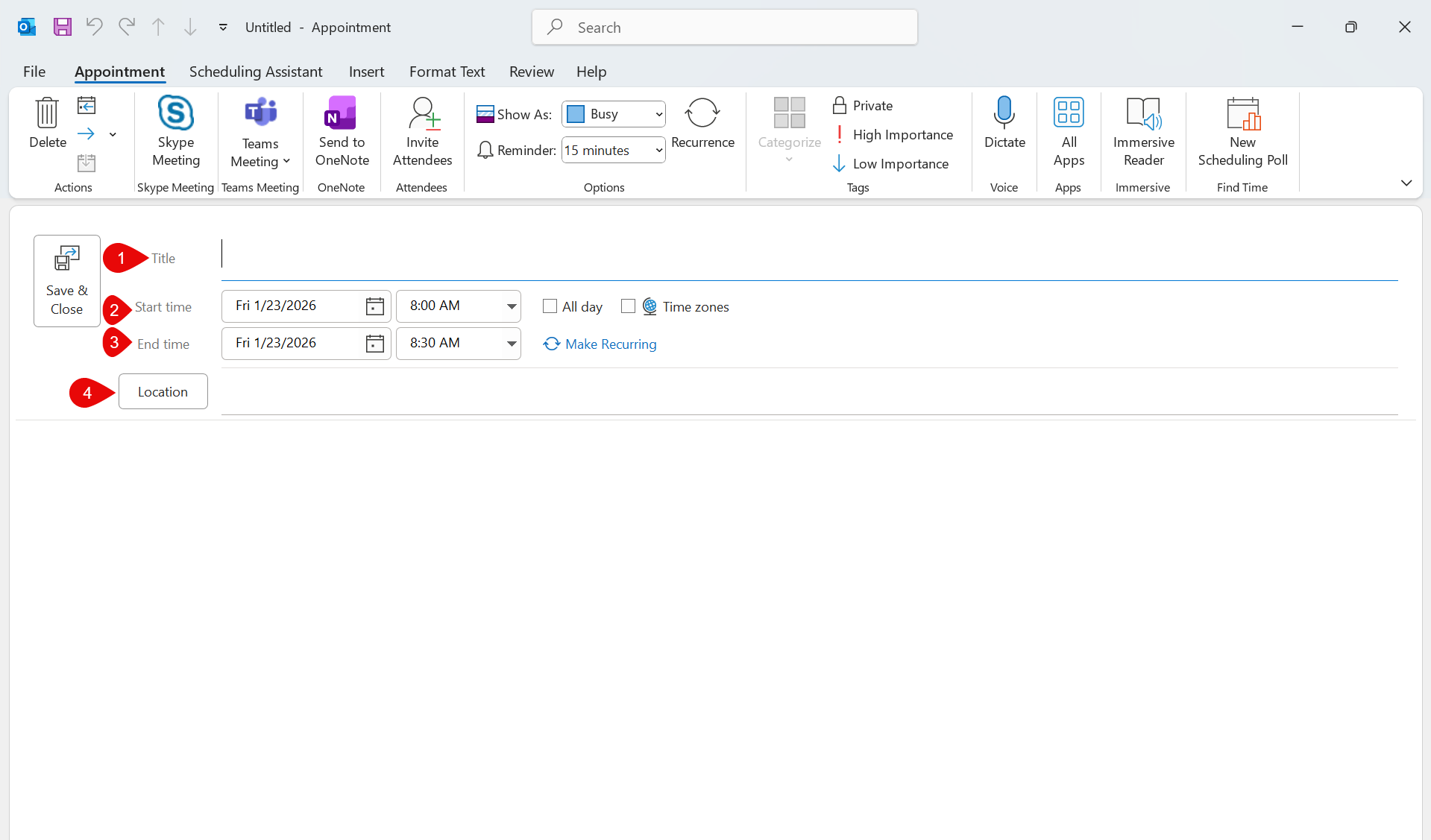
- Title: Enter the title or subject of your meeting.
- Start and End Time: Specify the meeting start time and end time.
- Location: Click on the location field to select or enter the meeting room.
3. Choose the preferred meeting room
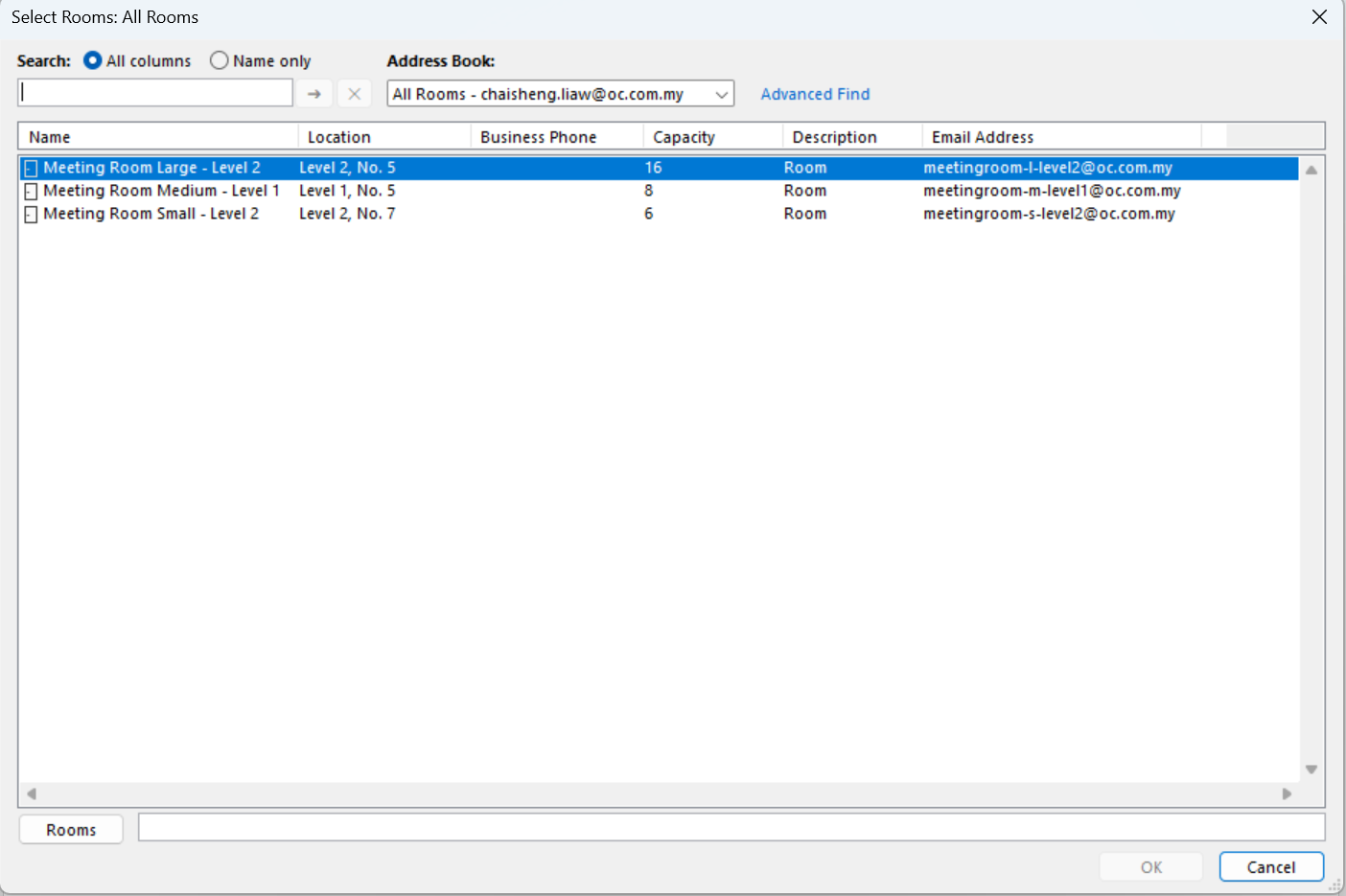
Select & Double Click the meeting room from the available options:
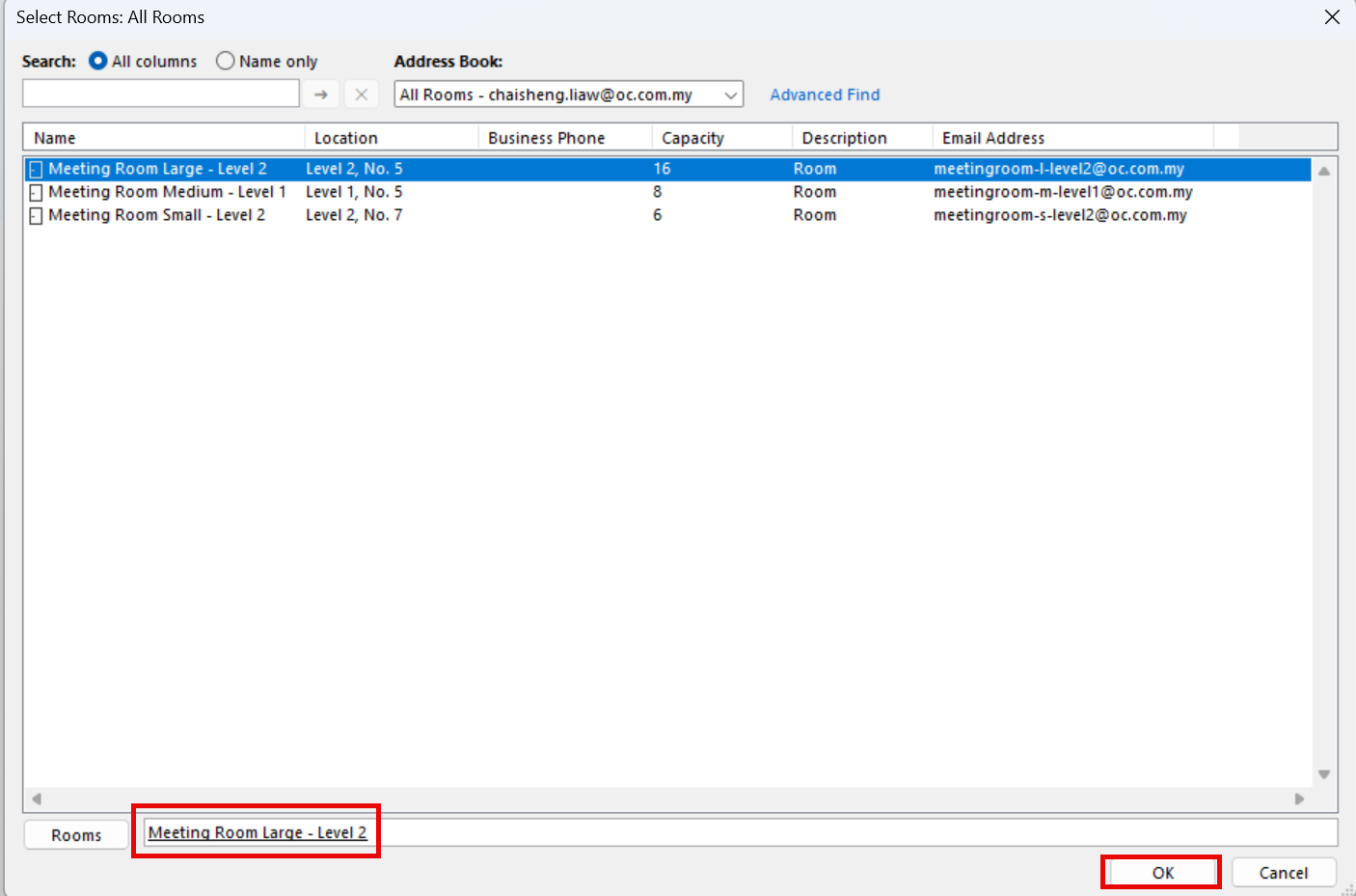
- Meeting Room Medium – Level 1
- Meeting Room Large – Level 2
- Meeting Room Small – Level 2
4. Verify Meeting Room Booking
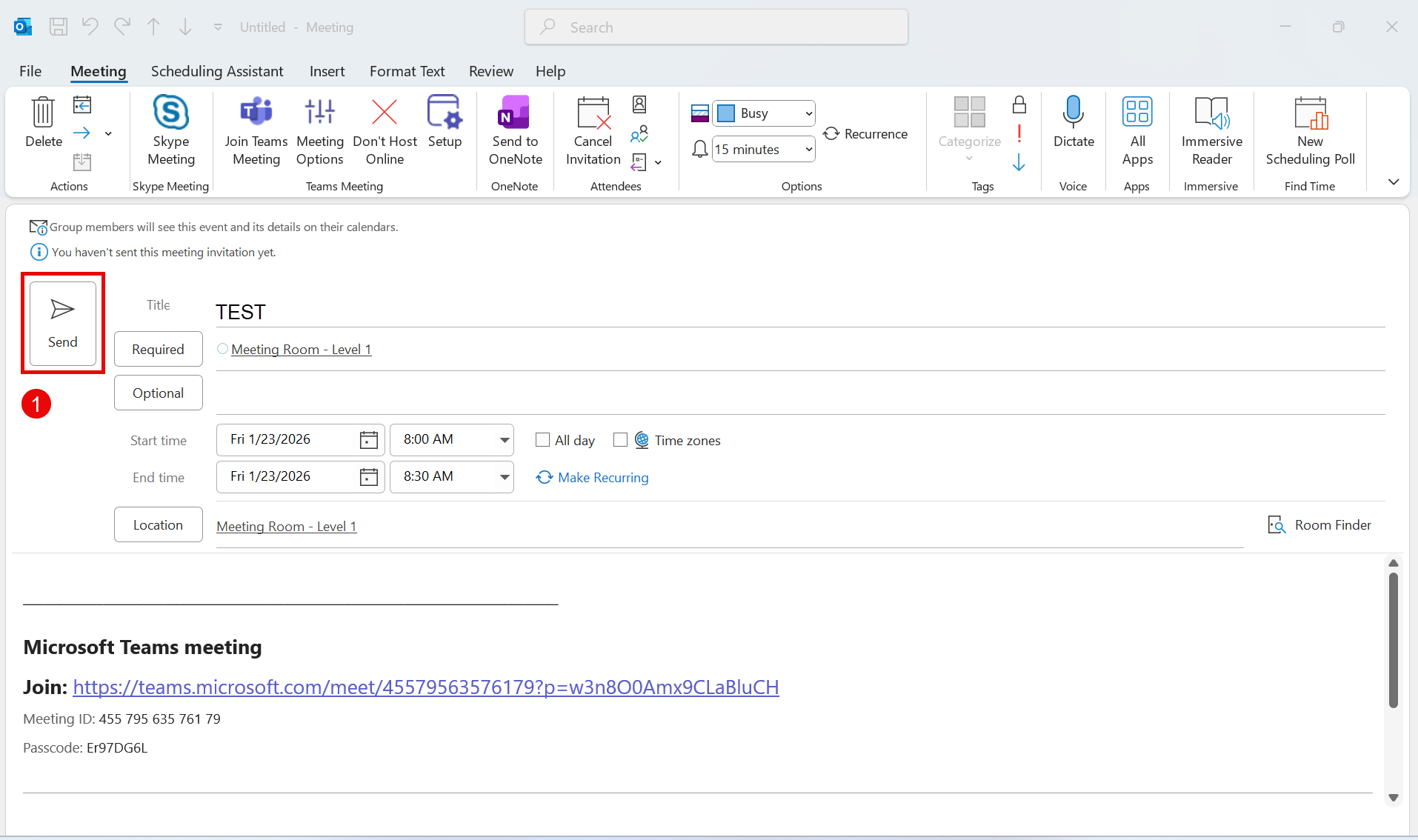
- Send Invitation: Click Send to finish booking the room and schedule the meeting.
- Room Picked: Ensure the selected meeting room is correct.
5. Check schedules in Calendar
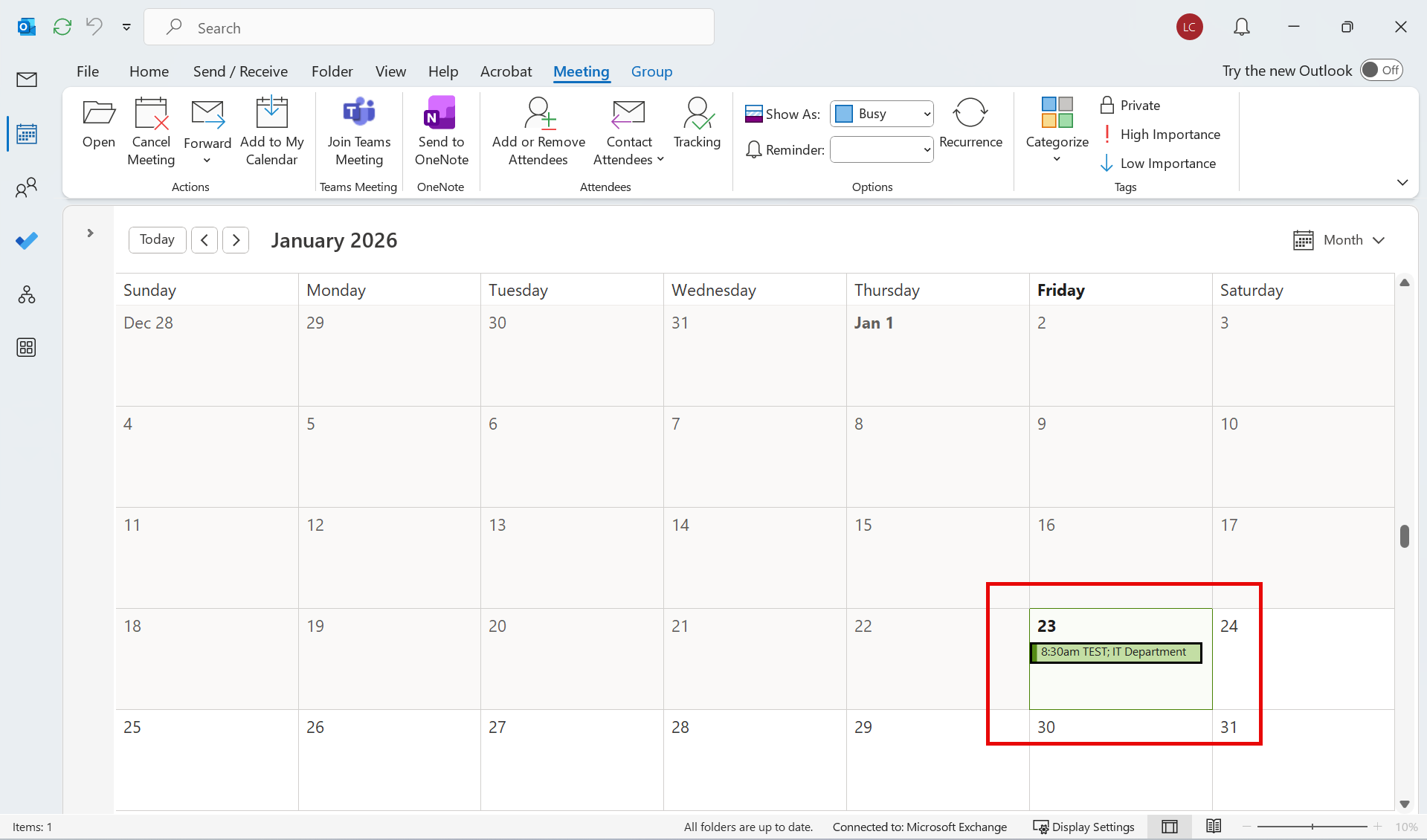
- Check your calendar: The booked room will appear in your Outlook calendar.
- Room availability: Other users will not be able to book the same room for that time slot.