
When should you do this?
If Adobe Creative Cloud displays any of the following messages:
- License Expired
- Access Denied
- Subscription Verification Failed
Please follow the steps below to refresh your Adobe license.
Step 1: Sign Out
- Open Adobe Creative Cloud.
- Click your Profile Icon (top-right corner).
- Click Sign Out.
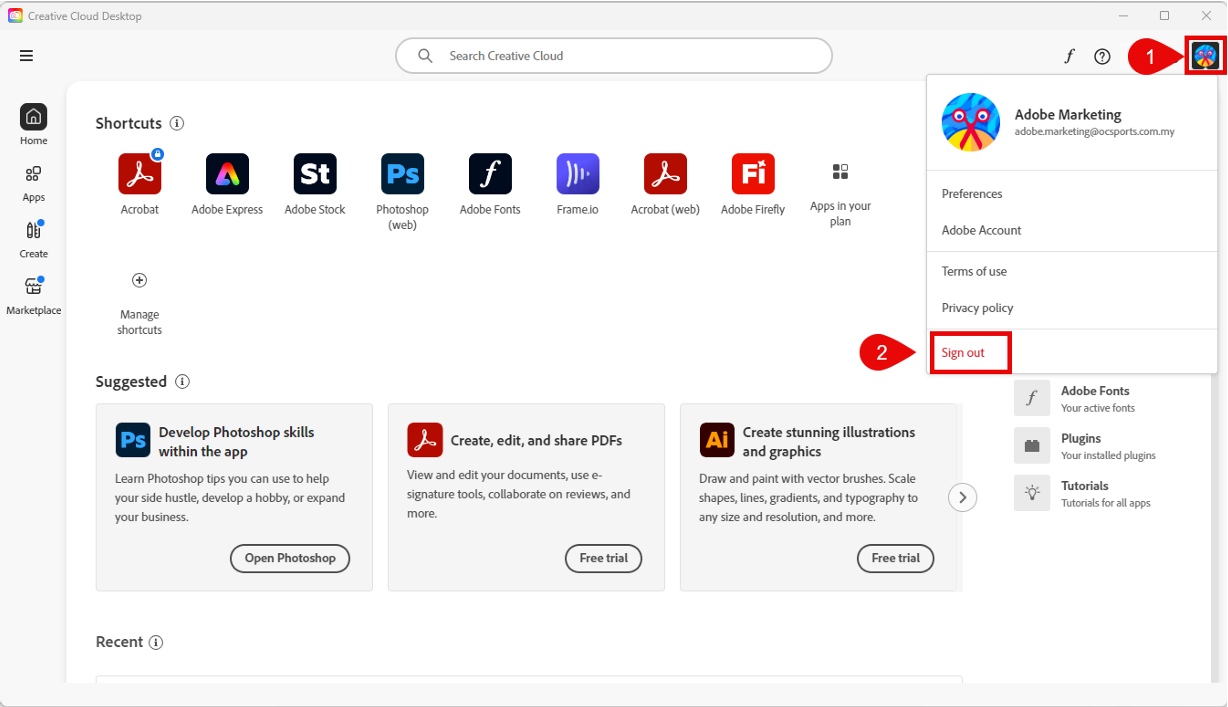
Step 2: Continue Sign Out
- Follow the on-screen prompts.
- Click Continue to complete the sign-out process.
- Wait until Adobe Creative Cloud is fully signed out.
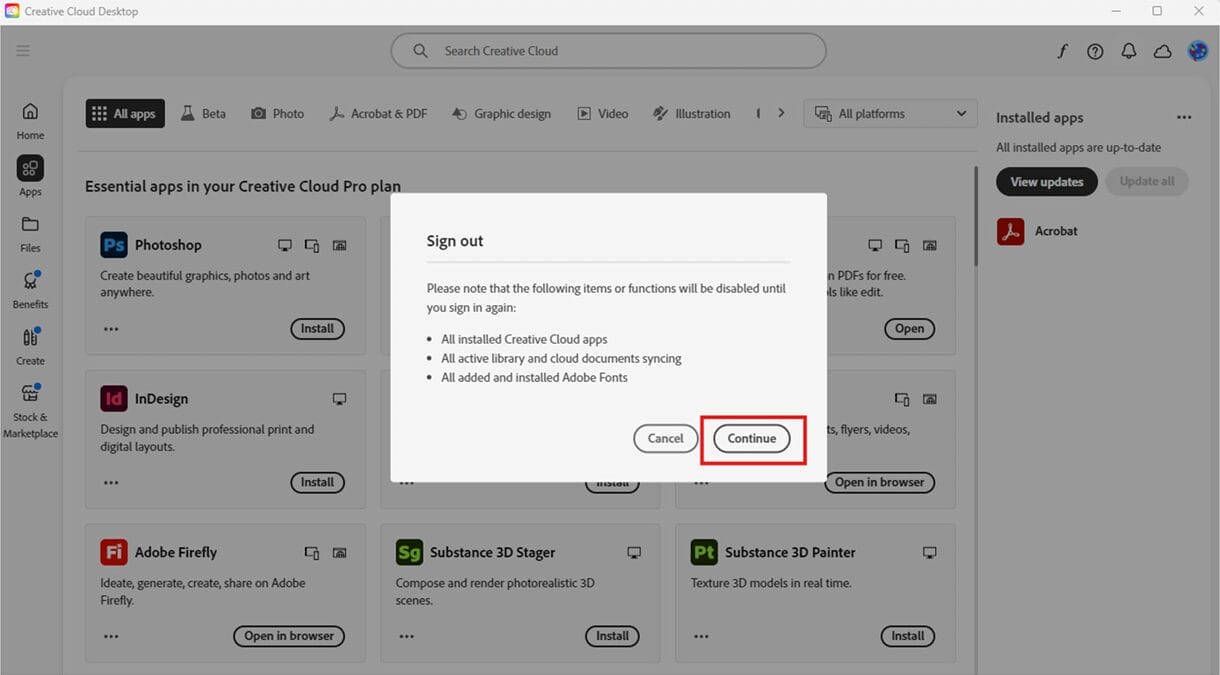
⚠️ Ensure the sign-out process is completed before proceeding.
Step 3: Sign In Again
- Launch Adobe Creative Cloud.
- Click Sign In.
- Enter your Adobe account credentials.
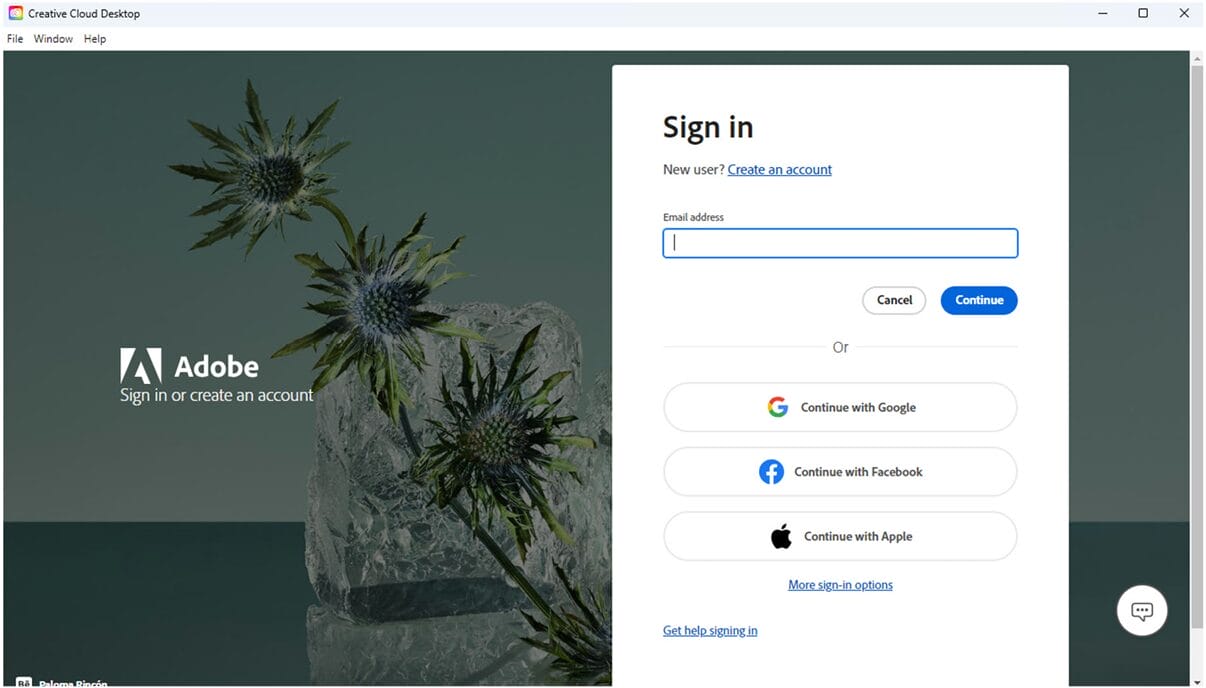
Step 4: Select Profile
- If prompted, select your profile.
- Ensure you choose the correct profile assigned.
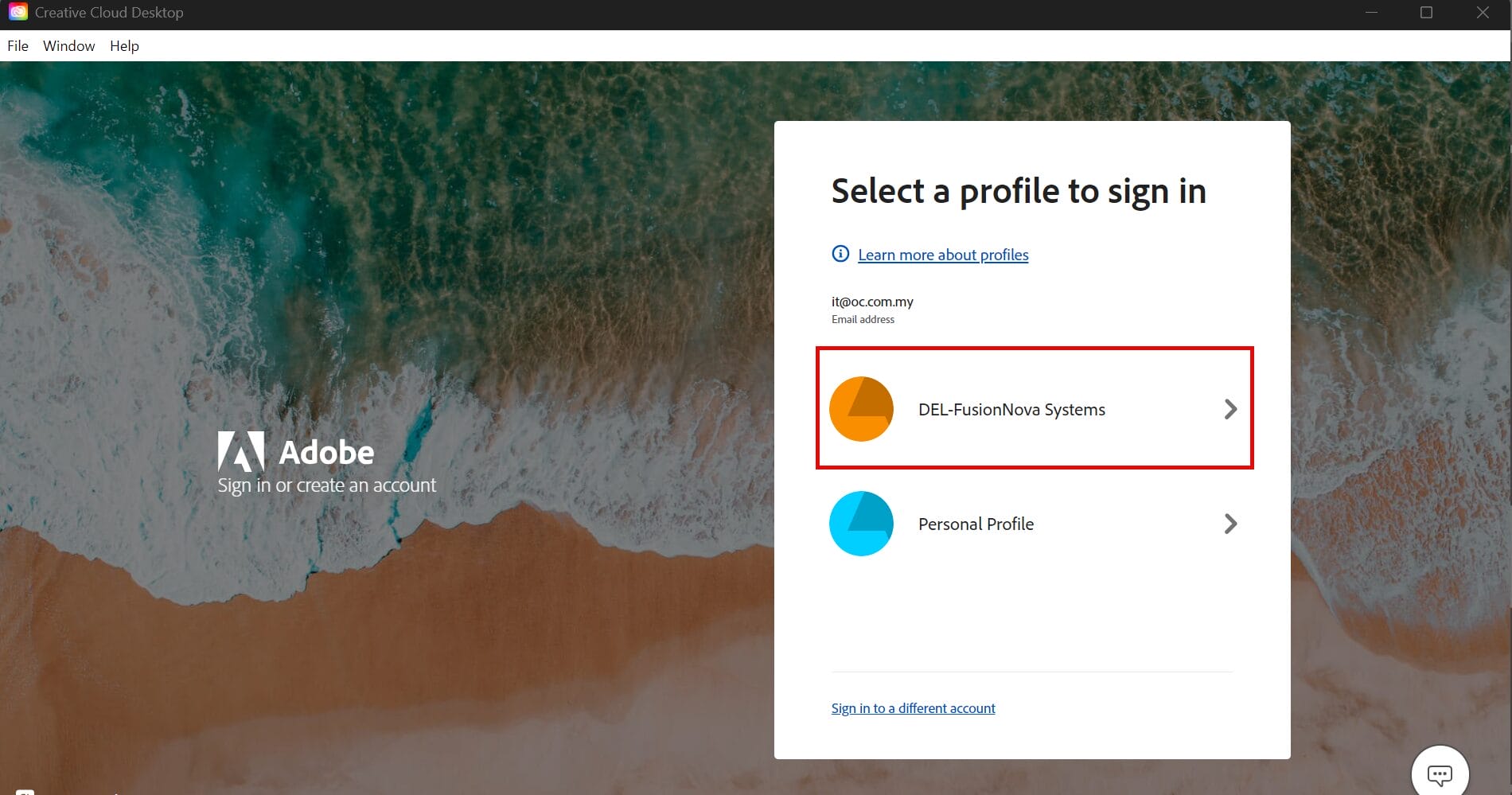
⚠️ Selecting the wrong profile may result in “License Expired” or “Access Denied” errors.
Step 5: Verify License Status
- Confirm that your selected profile shows an assigned license.
- Open the required Adobe application and verify it launches successfully.
Example: Licensed Profile ✅
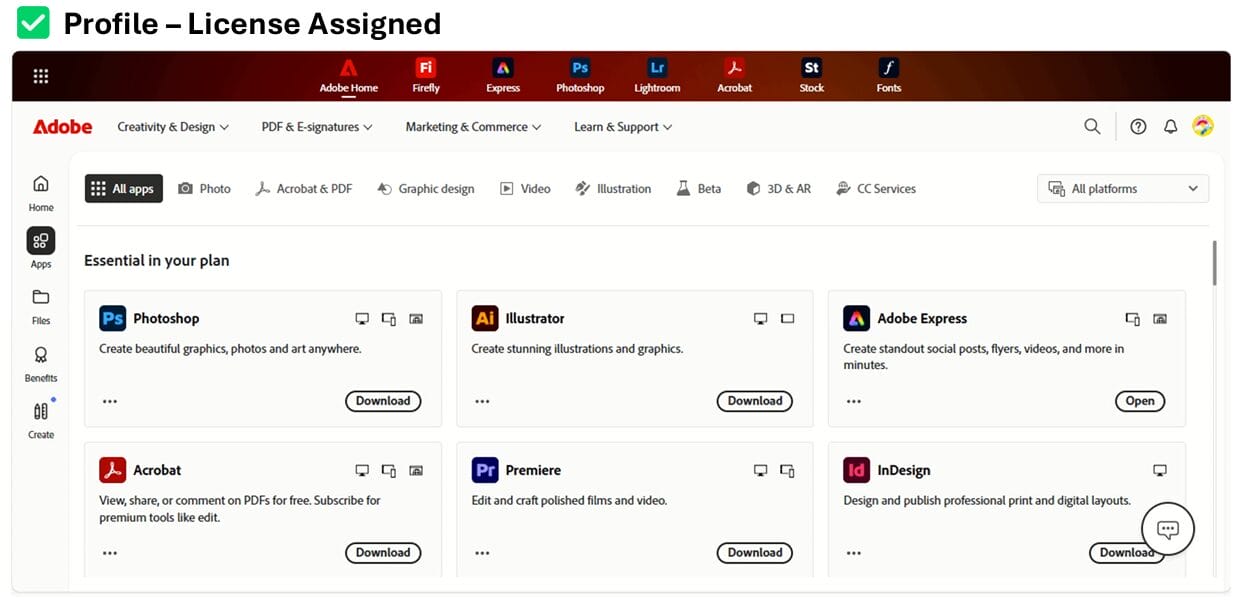
Status: License Assigned
Example: Unlicensed Profile ❌
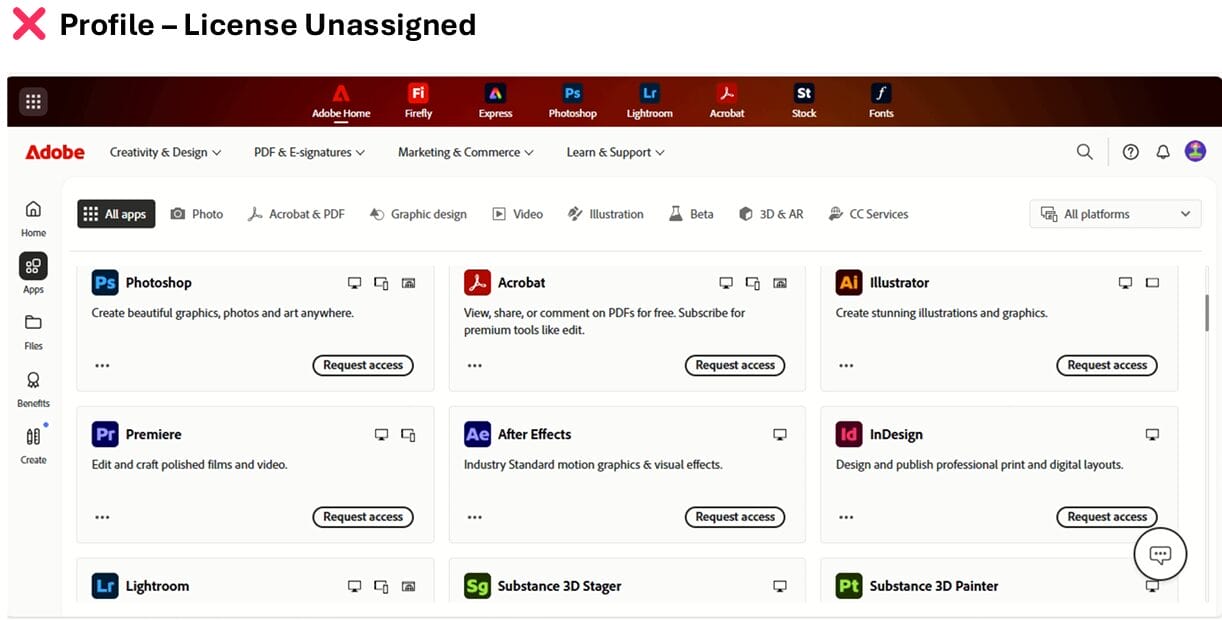
Status: No License Assigned
⚠️ If your profile shows “No License Assigned”, please contact the IT Department for assistance.
end