
⚠️ Important Note
Before proceeding with any troubleshooting steps, please verify the payment status from the Affin terminal transaction history.
Do not rely solely on the customer’s banking app notification or SMS deduction alert, as a deduction from the customer’s account does not necessarily mean the payment was successfully received by the merchant.
A payment should only be considered successful when:
- The transaction can be found in the Affin terminal transaction history.
- The transaction status is Successful.
- A receipt can be generated from the terminal.
If the transaction cannot be found in the terminal, follow the steps below to verify the payment and request a second payment if necessary.
Step 1: Check Transaction History
On the Affin terminal, navigate to the transaction history and search for the transaction.
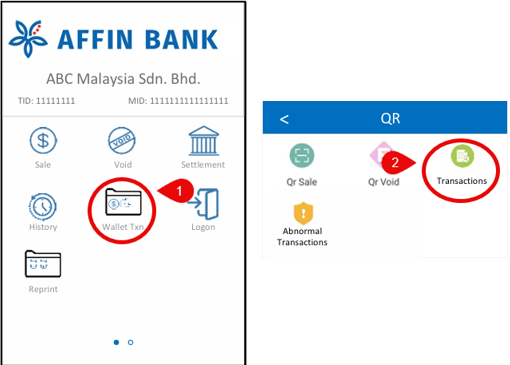
- For QR payments: Go to Wallet Txn > Transactions.
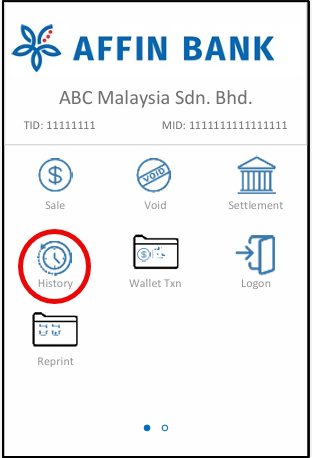
- For Card payments: Go to History.
📌 Search using the transaction amount, date, and time to verify whether the transaction was successfully recorded in the terminal.
Scenario A: Transaction Found
If the transaction is found in the terminal:
- Generate the receipt manually from the POS system.
- Since the POS system did not generate the receipt automatically, use the manual receipt generation function in the POS system.
- Go Payment > Credit Card > Insert Card No (Card Type) > Press Enter
- Verify that the transaction status is “Successful”.
- Ensure the transaction status shown on the terminal is Successful before proceeding.
- No additional payment is required from the customer.
- Once the transaction is confirmed as Successful and the receipt has been generated, the sale can be completed normally.
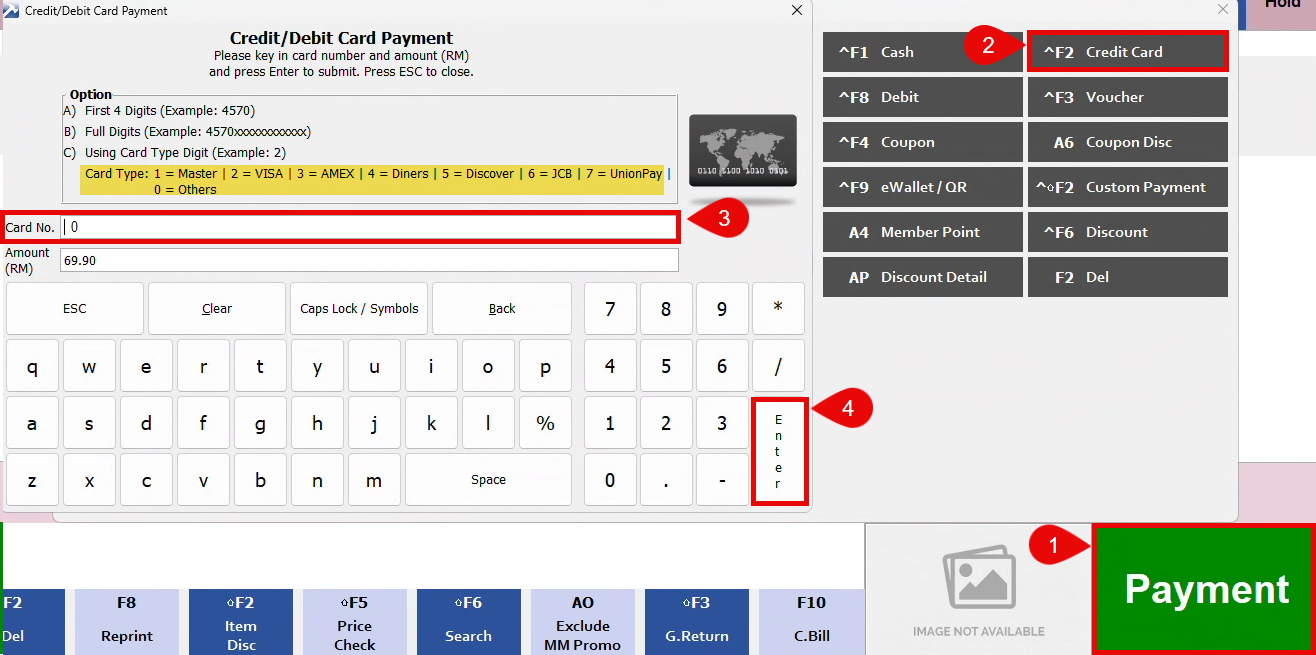
📌 This payment screen will appear after you cancel the Credit Card payment once and then open the Credit Card payment screen again.
⚠️ Card Type Reference:
- 1 = MasterCard
- 2 = Visa
- 3 = American Express (Amex)
- 4 = Diners Club
- 5 = Discover
- 6 = JCB
- 7 = UnionPay
- 0 = Others (QR Payment, Touch ‘n Go, DuitNow QR, etc.)
Scenario B: Transaction Not Found
If the transaction is not found in the terminal:
- Request the customer to make the payment again to complete the purchase.
- Inform the customer that the amount deducted from their account will normally be automatically refunded by the bank within 3 working day, as the payment was not successfully received on our side.
- If the refund is not received after 3 working day, the customer should contact their bank directly for further assistance.
- In the unlikely event that the previous payment is later confirmed as successfully received by us, a refund will be processed within 14 working days.
- Ensure the new payment is successfully processed and appears in the terminal transaction history before completing the sale.
- If the issue persists or occurs repeatedly, please contact Affin Terminal Support (03-7890 3003) and report the issue for further investigation.
- When reporting the issue, please provide the following information:
- Outlet Name
- Terminal ID (TID)
- Transaction Amount
- Transaction Date & Time
- Payment Method (Card / QR)
- Error Message displayed on the terminal (if any)
- Record the reference number provided by the support team for follow-up purposes.
- When reporting the issue, please provide the following information:
⚠️ IMPORTANT
- If the transaction cannot be found in the terminal, the payment is NOT considered successful.
- The customer must make a second payment to complete the purchase.
- A deduction notification from the bank does not confirm that the merchant has received the payment.
- Always verify the transaction from the Affin terminal transaction history.
end