Skip to content
Original Classic Portal
  • Outlet Lists
  • News
  • Employee Directory
  • Stores Locator
  • KnowledgeBase
  • IT FormsExpand
    • IT Equipment Checkout
    • Outlet IT Assets Handover Form
Original Classic Portal
Popular Search closinghow topromotionhowcancel

POS System

  • Affin Terminal Transaction Failed – User Troubleshooting Guide
  • How to Delete Goods Receiving Record (GRR) in ARMS?
  • How to Cancel Goods Receiving Note (GRN) in ARMS?
  • How to Exclude Items from Promotions in ARMS POS?
  • How To Cancel Bill in ARMS POS?
  • How To Reprint Transaction and Settlement?
  • How to Redeem Voucher in ARMS POS?
  • How to Redeem Coupon in ARMS POS?
  • How To Force Close and Restart ARMS POS When Not Responding?
  • How to Create a Temporary SKU in ARMS POS?
  • Atome BNPL Payment
  • How to Unlock ARMS POS?
  • How to login ARMS POS System?
  • How to logout from POS System?
  • How to cash in (float money) into POS system?
  • How to issue receipt/invoice? (without promotion item)
  • How to issue receipt/invoice for bundle promotion?
  • How to perform Item Discount?
  • Reprint Receipt
  • Why I unable to refresh (F5 key) the POS system screen?
  • How to delete item/SKU in POS system Screen?
  • How to Prune Receipt?
  • How to perform Goods Return (Exchange)?

Inventory

  • How To Perform Goods Receiving with Delivery Order (DO)? (Stock In)
  • How To Perform Goods Receiving with Purchase Order (PO)? (Stock In)
  • How To Perform Delivery Order (DO) Transfer? (Stock Transfer)
  • How To Perform Delivery Order Checkout?

Account

  • Atome BNPL Payment

OC Membership

  • How To Redeem a Coupon from OC Membership
  • How To Issue Receipt with OC Membership
  • OC Membership – Register as new member

Ticketing System

  • OC Helpdesk User Guideline (Ticket Submission)

Microsoft

  • How to Book a Meeting Room in Microsoft Outlook
  • Microsoft Teams Communication
  • How to Create a Team and Channel in Microsoft Teams

Adobe Creative Cloud

  • Adobe Creative Cloud Re-sign In Guide

OC Portal

  • How to Check Available Voucher Codes in a Voucher Batch?

Office

  • How to Scan a Document Using the Ricoh Printer
View Categories
  • Home
  • KnowledgeBase
  • Adobe Creative Cloud
  • Adobe Creative Cloud Re-sign In Guide

Adobe Creative Cloud Re-sign In Guide

When should you do this?

If Adobe Creative Cloud displays any of the following messages:

  • License Expired
  • Access Denied
  • Subscription Verification Failed

Please follow the steps below to refresh your Adobe license.

Step 1: Sign Out

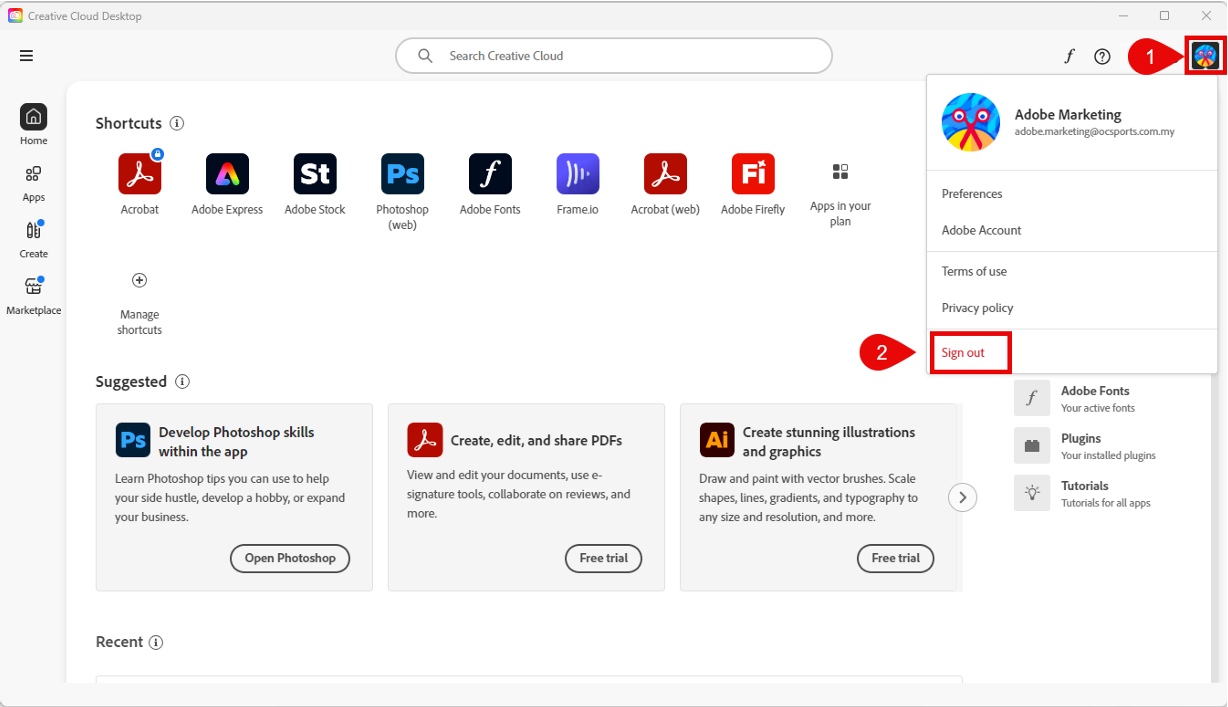
  1. Open Adobe Creative Cloud.
  2. Click your Profile Icon (top-right corner).
  3. Click Sign Out.

Step 2: Continue Sign Out

  1. Follow the on-screen prompts.
  2. Click Continue to complete the sign-out process.
  3. Wait until Adobe Creative Cloud is fully signed out.
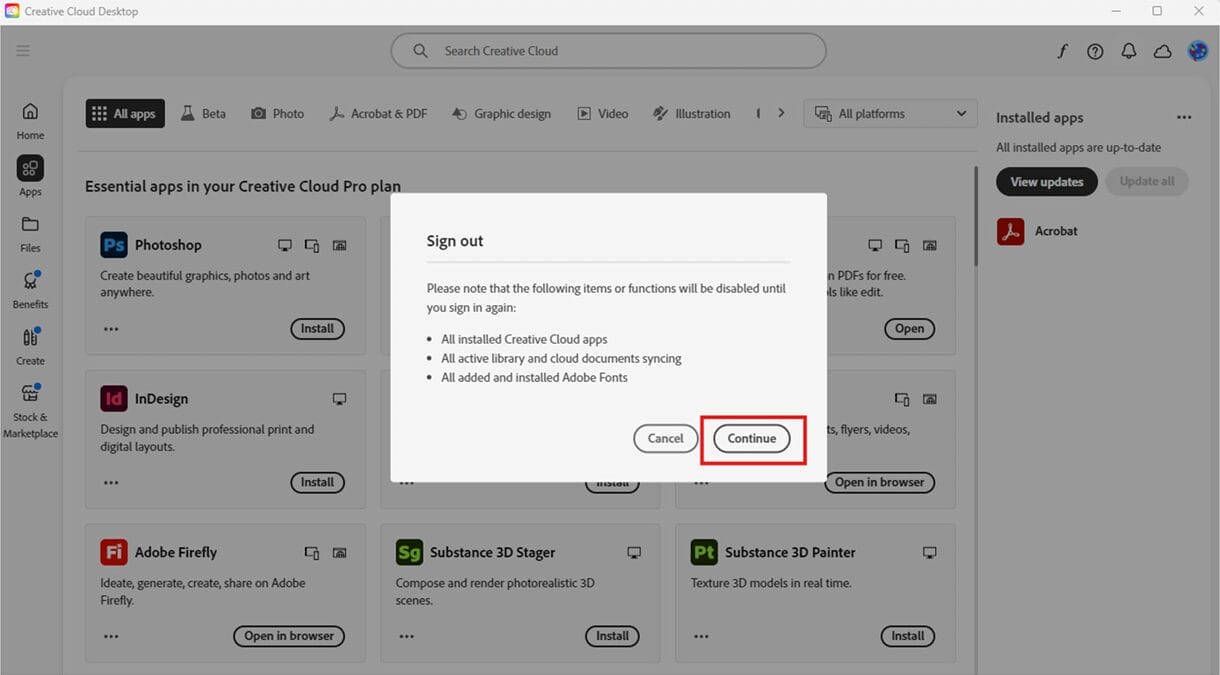
⚠️ Ensure the sign-out process is completed before proceeding.


Step 3: Sign In Again

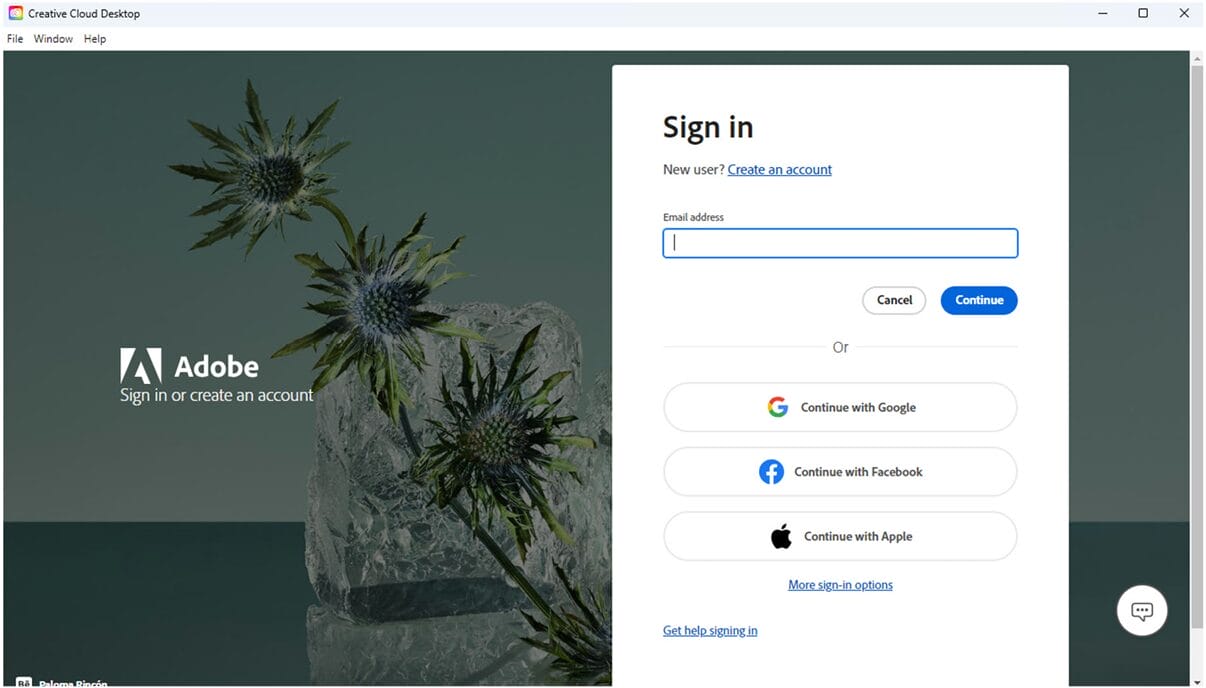
  1. Launch Adobe Creative Cloud.
  2. Click Sign In.
  3. Enter your Adobe account credentials.

Step 4: Select Profile

  1. If prompted, select your profile.
  2. Ensure you choose the correct profile assigned.
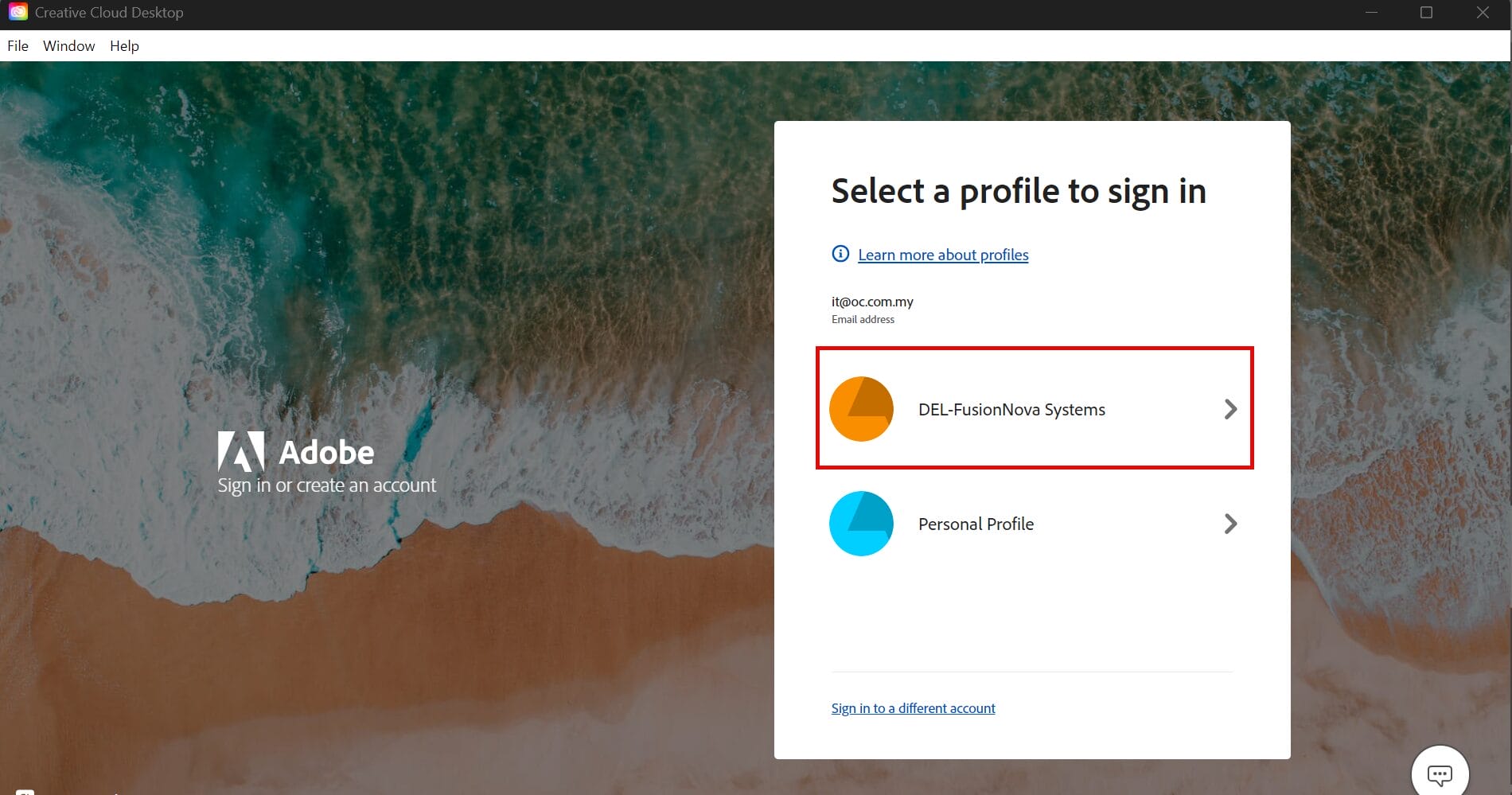
⚠️ Selecting the wrong profile may result in “License Expired” or “Access Denied” errors.


Step 5: Verify License Status

  1. Confirm that your selected profile shows an assigned license.
  2. Open the required Adobe application and verify it launches successfully.

Example: Licensed Profile ✅
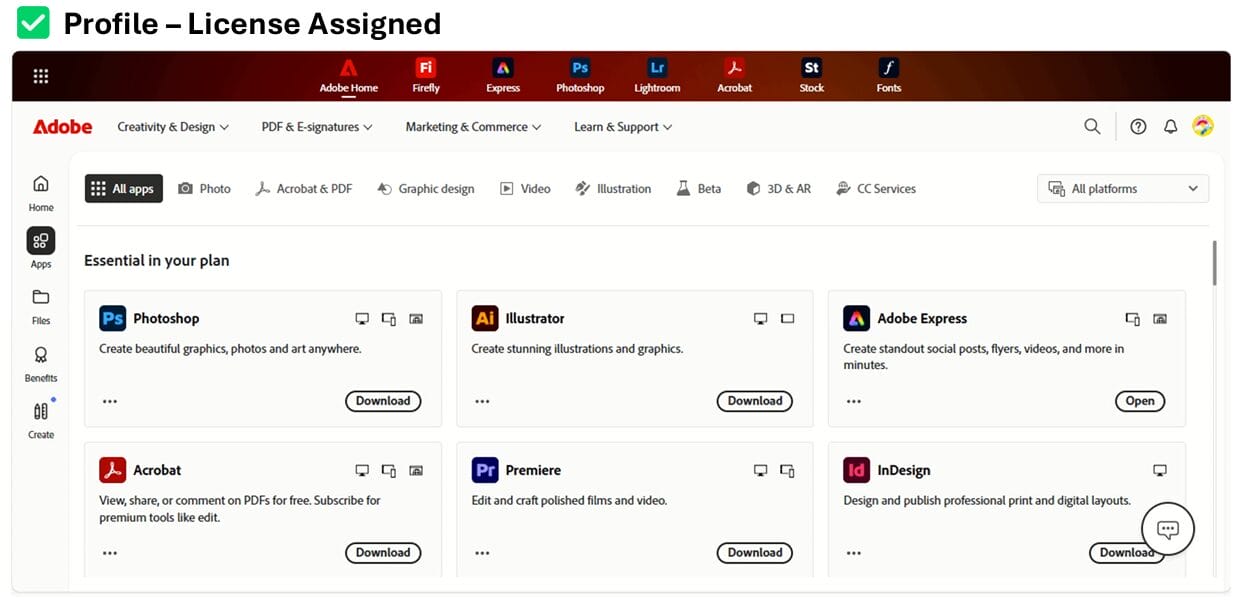
Status: License Assigned

Example: Unlicensed Profile ❌
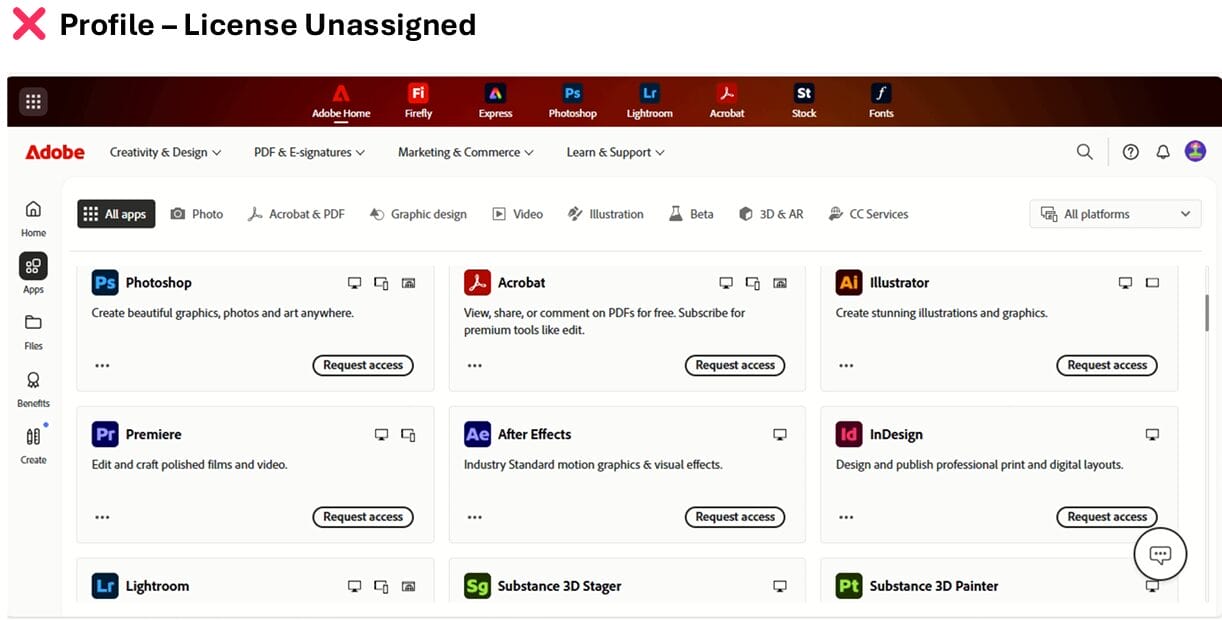
Status: No License Assigned

⚠️ If your profile shows “No License Assigned”, please contact the IT Department for assistance.


end

Updated on 04/06/2026
Adobe Creative Cloud Re-sign In GuideAdobe Creative Cloud Re-sign In Guide
  • Outlet Lists
  • News
  • Employee Directory
  • Stores Locator
  • KnowledgeBase
  • IT Forms

© 2026 Original Classic Portal

Scroll to top
  • Outlet Lists
  • News
  • Employee Directory
  • Stores Locator
  • KnowledgeBase
  • IT Forms
    • IT Equipment Checkout
    • Outlet IT Assets Handover Form