
Notes:
- This guide explains the steps to delete (cancel) a Goods Receiving Record (GRR) in the ARMS system.
- Cancel the GRR only if the record was created by mistake, duplicated, or keyed incorrectly
- Deleting the GRR will remove the receiving record from the system.
- Always inform the HQ Warehouse Receiving Team if the GRR relates to an actual stock delivery.
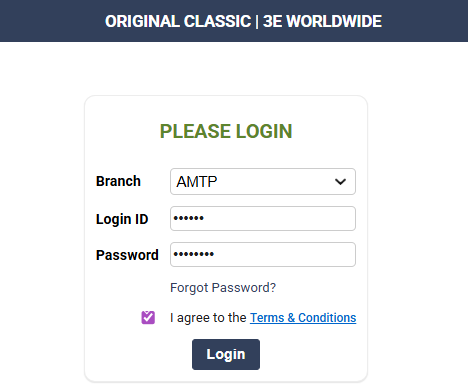
1. Log in to ARMS using your ID and Branch. (https://pos.ocsports.com.my)
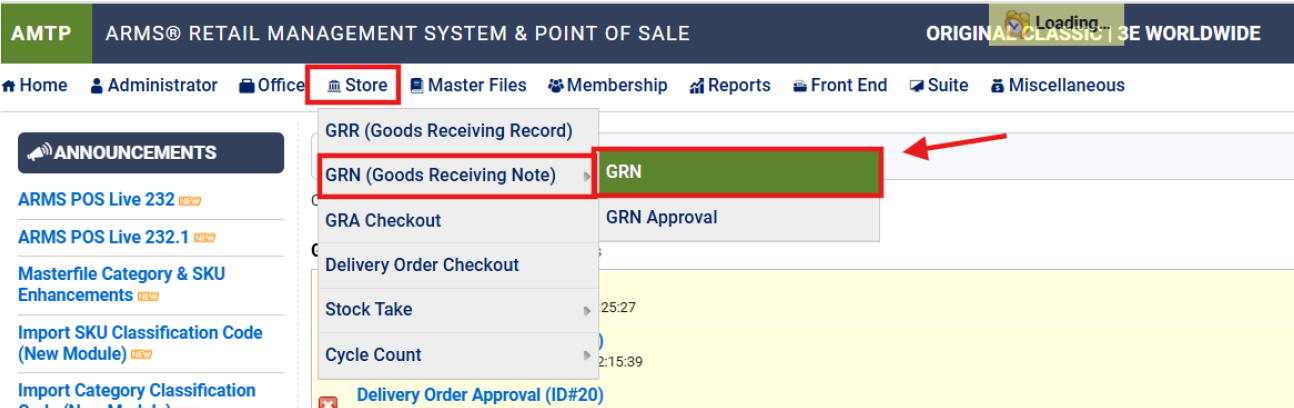
2. Go to Store > GRN (Goods Receiving Note) > GRN
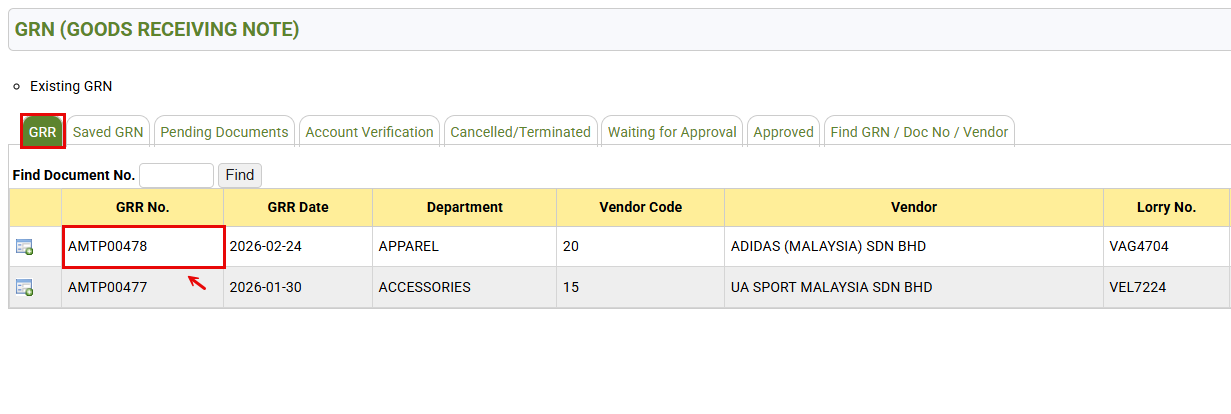
3. Find the GRR No.
– Go to the GRR tab
– Locate your GRR No. (Example: AMTP00478)
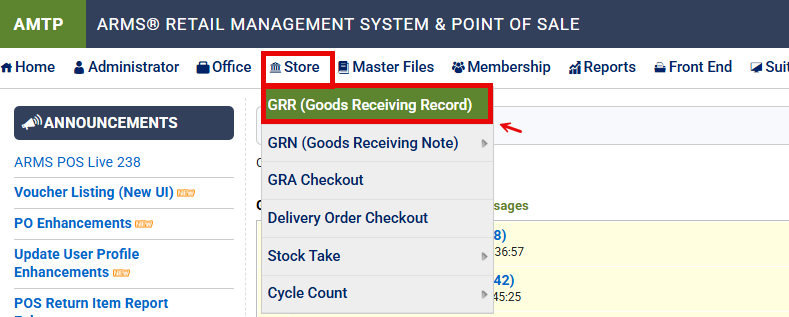
4. Go to Store > GRR (Goods Receiving Record)
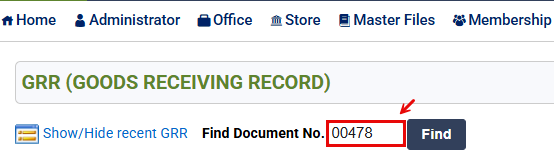
5. Search GRR
– Search using only the running number behind the prefix:
– Example:
– For AMTP00478 → enter 00478
– Then click on Find button
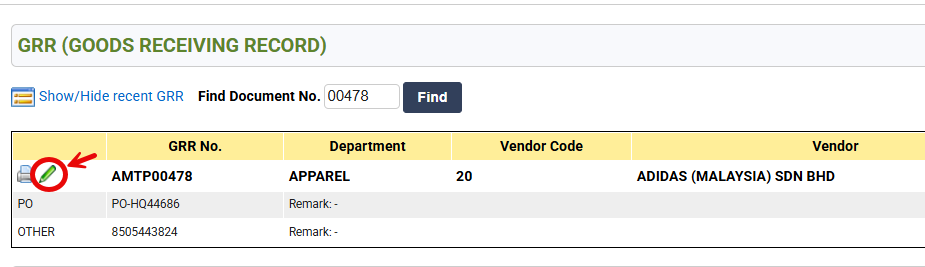
6. Click the Pen Icon to open and edit the GRR
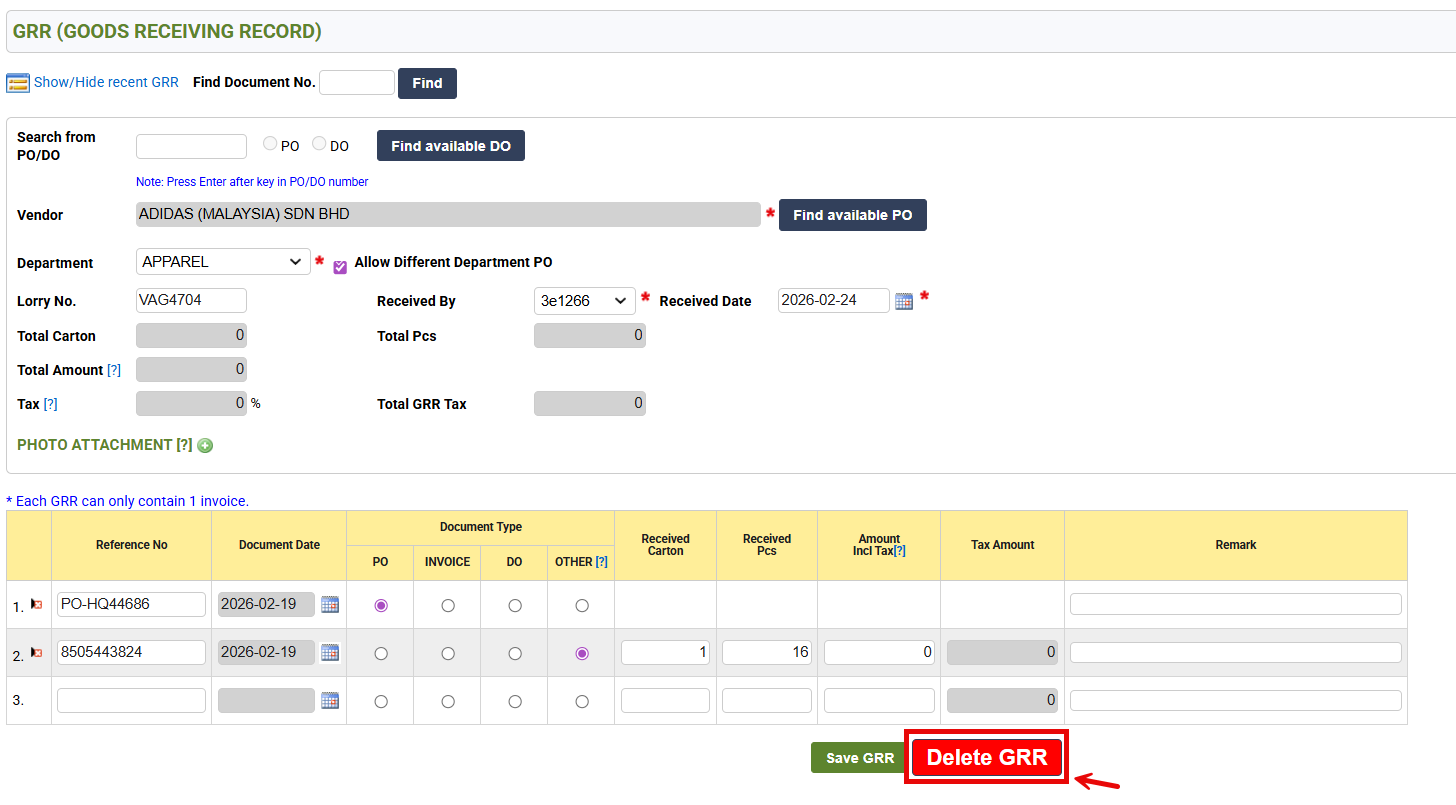
7. Delete GRR
end