
Skip to content

  • Outlet Lists
  • Employee Directory
  • Stores Locator
  • KnowledgeBase
  • IT FormsExpand
    • IT Equipment Checkout
    • Outlet IT Assets Handover Form
Popular Search closinghow topromotionhowcancel

POS System

  • How to Exclude Items from Promotions in ARMS POS?
  • How To Cancel Bill in ARMS POS?
  • How To Reprint Transaction and Settlement?
  • How to Redeem Voucher in ARMS POS?
  • How to Redeem Coupon in ARMS POS?
  • How To Force Close and Restart ARMS POS When Not Responding?
  • How to Create a Temporary SKU in ARMS POS?
  • Atome BNPL Payment
  • Gempak Giler (Mega Sale 2024) – RM100 INSTANT REBATE
  • How to Unlock ARMS POS?
  • How to login ARMS POS System?
  • How to logout from POS System?
  • How to cash in (float money) into POS system?
  • How to issue receipt/invoice? (without promotion item)
  • How to issue receipt/invoice for bundle promotion?
  • How to perform Item Discount?
  • Reprint Receipt
  • Why I unable to refresh (F5 key) the POS system screen?
  • How to delete item/SKU in POS system Screen?
  • How to Prune Receipt?
  • How to perform Goods Return (Exchange)?

Inventory

  • How To Perform Goods Receiving with Delivery Order (DO)? (Stock In)
  • How To Perform Goods Receiving with Purchase Order (PO)? (Stock In)
  • How To Perform Delivery Order (DO) Transfer? (Stock Transfer)
  • How To Perform Delivery Order Checkout?

Account

  • Atome BNPL Payment

OC Membership

  • How To Redeem a Coupon from OC Membership
  • How To Issue Receipt with OC Membership
  • OC Membership – Register as new member

Ticketing System

  • OC Helpdesk User Guideline (Ticket Submission)

Microsoft

  • Microsoft Teams Communication
  • How to Create a Team and Channel in Microsoft Teams
View Categories
  • Home
  • KnowledgeBase
  • Inventory
  • How To Perform Goods Receiving with Delivery Order (DO)? (Stock In)

How To Perform Goods Receiving with Delivery Order (DO)? (Stock In)

Goods receiving is a critical process when an outlet receives a Delivery Order (DO) or Purchase Order (PO).

Staff are responsible for checking the items and verifying the quantities during the goods receiving process.

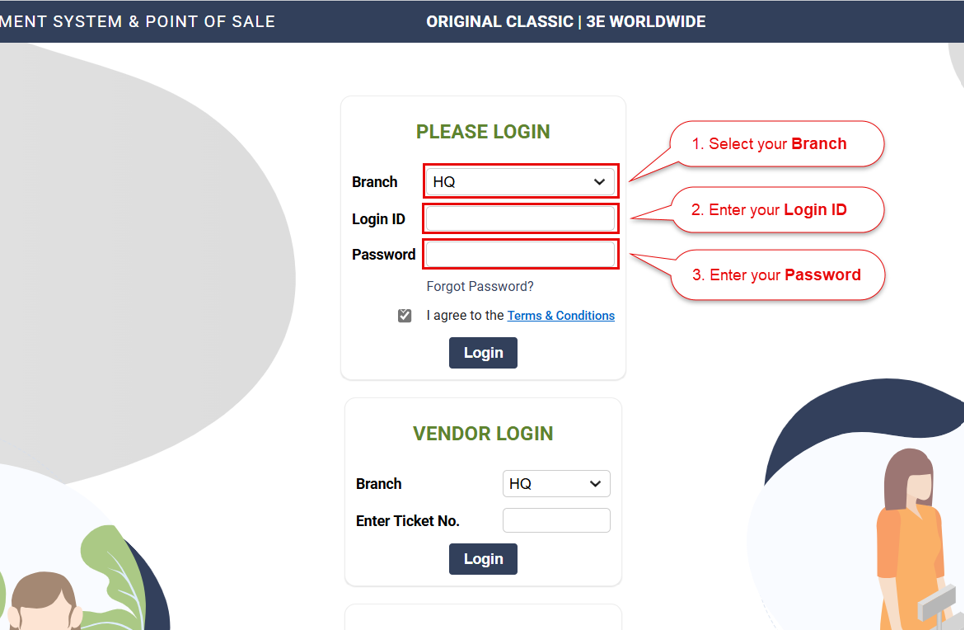
1. Login into the ARMS backend portal (https://pos.ocsports.com.my)
>Select Branch > Enter Login ID and Password

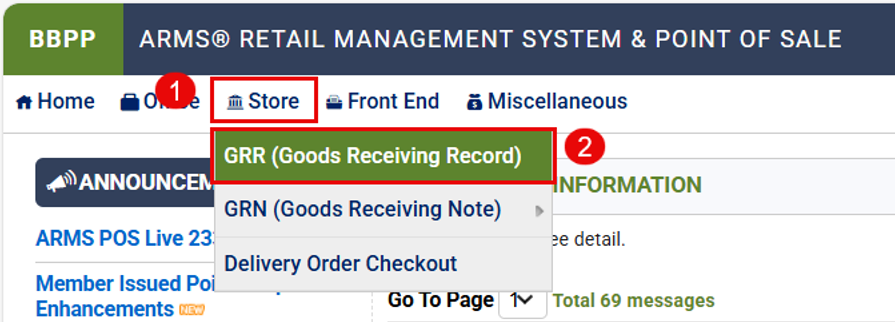
2. Then go to Store > GRR

3. Fill in accordingly


Important Notice:

Please ensure that the Delivery Order (DO) has been checked out.

If the DO is not checked out, you will encounter the following error:
“DO is not check out”


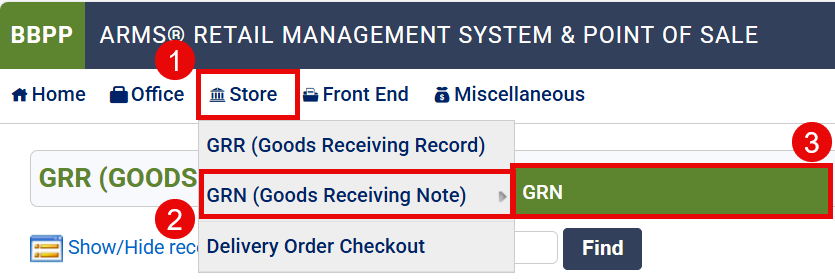
4. Go to Store > GRN (Goods Receiving Note) > GRN.

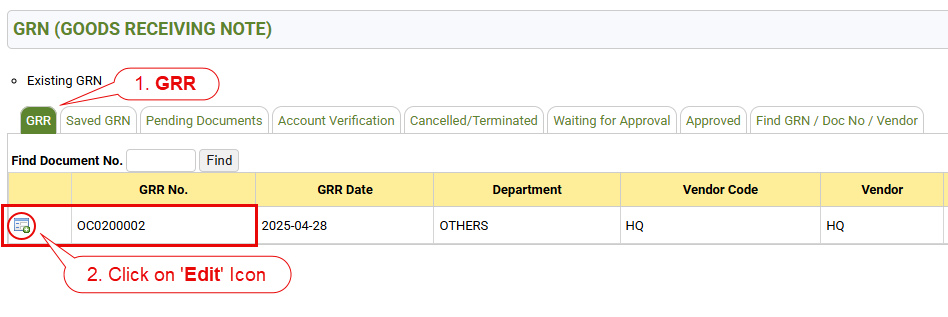
5. Go to GRR and click on the ‘Edit’ icon to open

6. Scan Barcode


7. Confirm to submit GRN
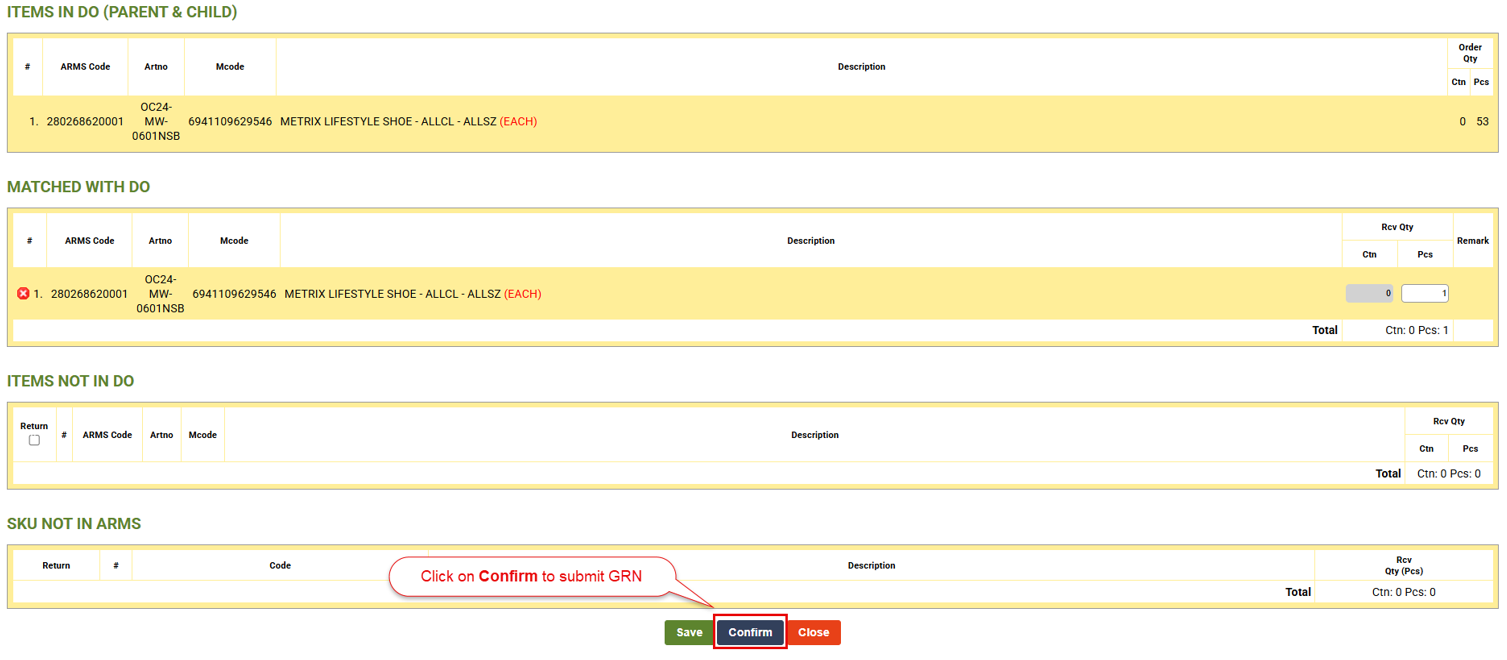

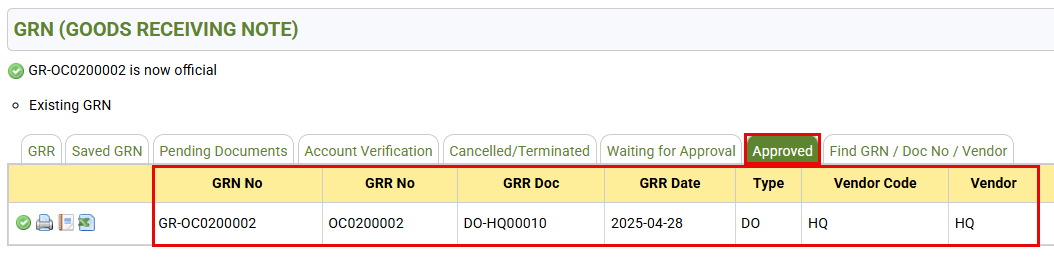
8. After submitting the GRN, you can find it under the ‘Approved’ tab

end

Updated on 29/04/2025
How To Perform Goods Receiving with Purchase Order (PO)? (Stock In)

© 2026

Scroll to top
  • Outlet Lists
  • Employee Directory
  • Stores Locator
  • KnowledgeBase
  • IT Forms
    • IT Equipment Checkout
    • Outlet IT Assets Handover Form