Skip to content

  • Outlet Lists
  • Employee Directory
  • Stores Locator
  • KnowledgeBase
  • IT FormsExpand
    • IT Equipment Checkout
    • Outlet IT Assets Handover Form
Popular Search closinghow topromotionhowcancel

POS System

  • How to Exclude Items from Promotions in ARMS POS?
  • How To Cancel Bill in ARMS POS?
  • How To Reprint Transaction and Settlement?
  • How to Redeem Voucher in ARMS POS?
  • How to Redeem Coupon in ARMS POS?
  • How To Force Close and Restart ARMS POS When Not Responding?
  • How to Create a Temporary SKU in ARMS POS?
  • Atome BNPL Payment
  • Gempak Giler (Mega Sale 2024) – RM100 INSTANT REBATE
  • How to Unlock ARMS POS?
  • How to login ARMS POS System?
  • How to logout from POS System?
  • How to cash in (float money) into POS system?
  • How to issue receipt/invoice? (without promotion item)
  • How to issue receipt/invoice for bundle promotion?
  • How to perform Item Discount?
  • Reprint Receipt
  • Why I unable to refresh (F5 key) the POS system screen?
  • How to delete item/SKU in POS system Screen?
  • How to Prune Receipt?
  • How to perform Goods Return (Exchange)?

Inventory

  • How To Perform Goods Receiving with Delivery Order (DO)? (Stock In)
  • How To Perform Goods Receiving with Purchase Order (PO)? (Stock In)
  • How To Perform Delivery Order (DO) Transfer? (Stock Transfer)
  • How To Perform Delivery Order Checkout?

Account

  • Atome BNPL Payment

OC Membership

  • How To Redeem a Coupon from OC Membership
  • How To Issue Receipt with OC Membership
  • OC Membership – Register as new member

Ticketing System

  • OC Helpdesk User Guideline (Ticket Submission)

Microsoft

  • Microsoft Teams Communication
  • How to Create a Team and Channel in Microsoft Teams
View Categories
  • Home
  • KnowledgeBase
  • POS System
  • How to delete item/SKU in POS system Screen?

How to delete item/SKU in POS system Screen?


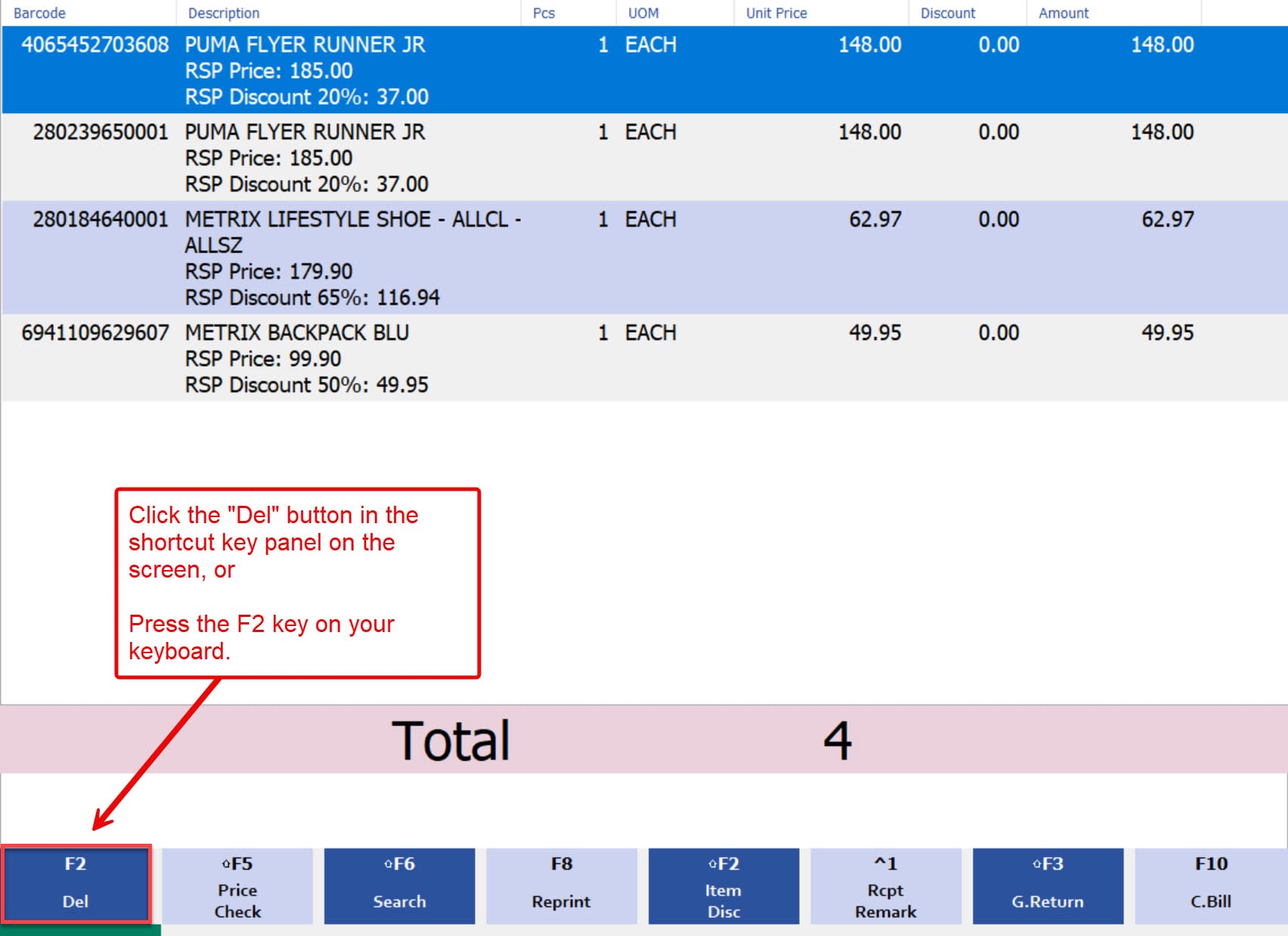
1. To remove or delete item in the POS system, you can either:

  • Click the “Del” button in the shortcut key panel on the screen, or
  • Press the F2 key on your keyboard.

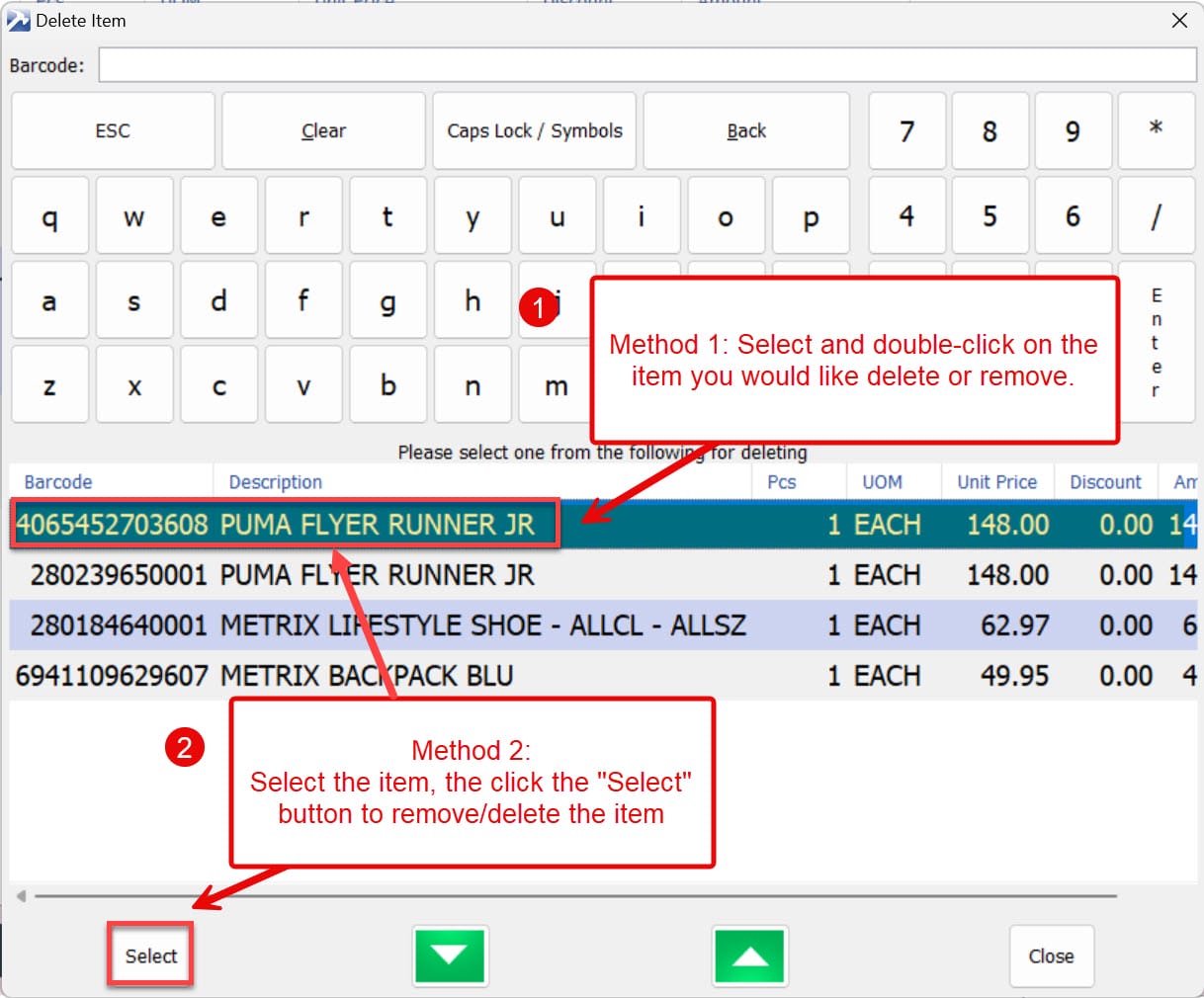
2. When the Delete Item window appears, you can remove or delete an item using either of these methods:

  • Double-click on the item you want to delete or remove.
  • Alternatively, select the item you wish to delete or remove, then click the “Select” button to proceed.
end

Delete
Updated on 16/07/2024
Why I unable to refresh (F5 key) the POS system screen?How to Prune Receipt?

© 2026

Scroll to top
  • Outlet Lists
  • Employee Directory
  • Stores Locator
  • KnowledgeBase
  • IT Forms
    • IT Equipment Checkout
    • Outlet IT Assets Handover Form