
This guide provides step-by-step instructions for creating a new Team and Channel in Microsoft Teams to help organize communication, files, and collaboration effectively.
Understanding Teams and Channels
Team — A workspace for people who collaborate regularly — for example, a department, project group, or committee.
Channel — Sub-sections inside a team for specific topics, projects, or tasks.
Note: Each Team can have multiple Channels.

How to Create a Team
1. Open Microsoft Teams.
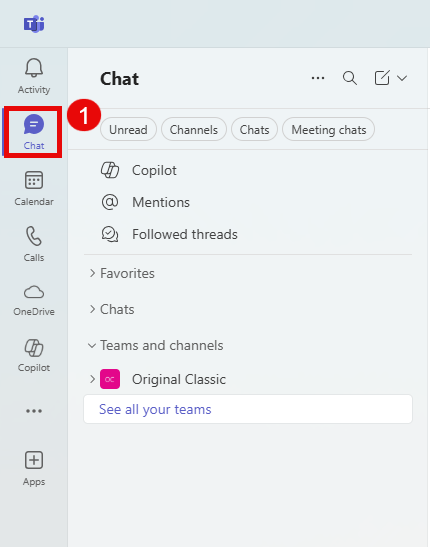
2. On the left panel, click Chat.
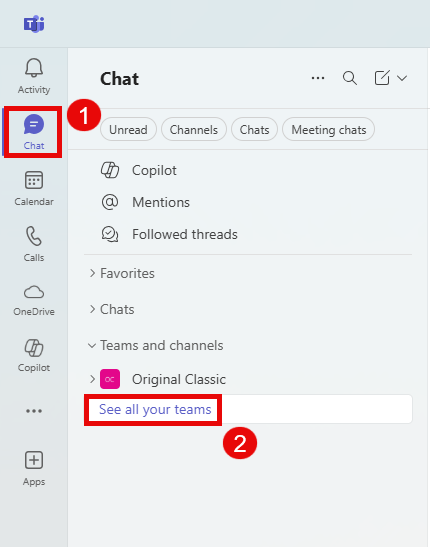
3. At Teams and Channels, click See all your teams.
4. Create team.

5. Enter:
- Team name (e.g., Team A)
- Description (optional)
- Team type
- Private – Only invited people can join.
- Public – Anyone in the organization can join.
- Org-wide – Everyone in your organzation automatically joins.
- First channel name (e.g., Team A – First)

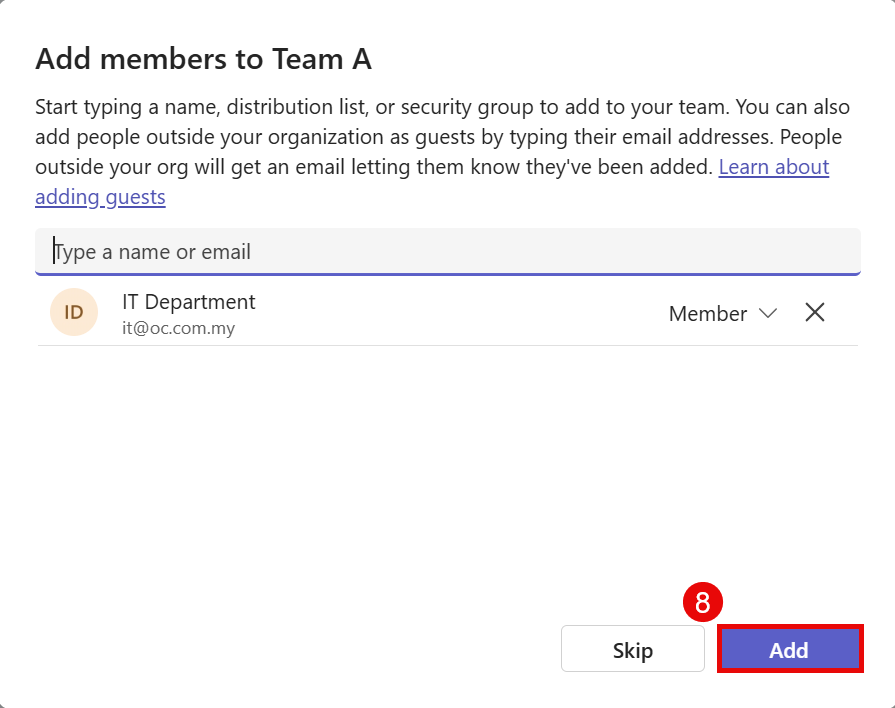
6. Add members to your Team (by name or email).
How to Create a Channel
1. Open Microsoft Teams.
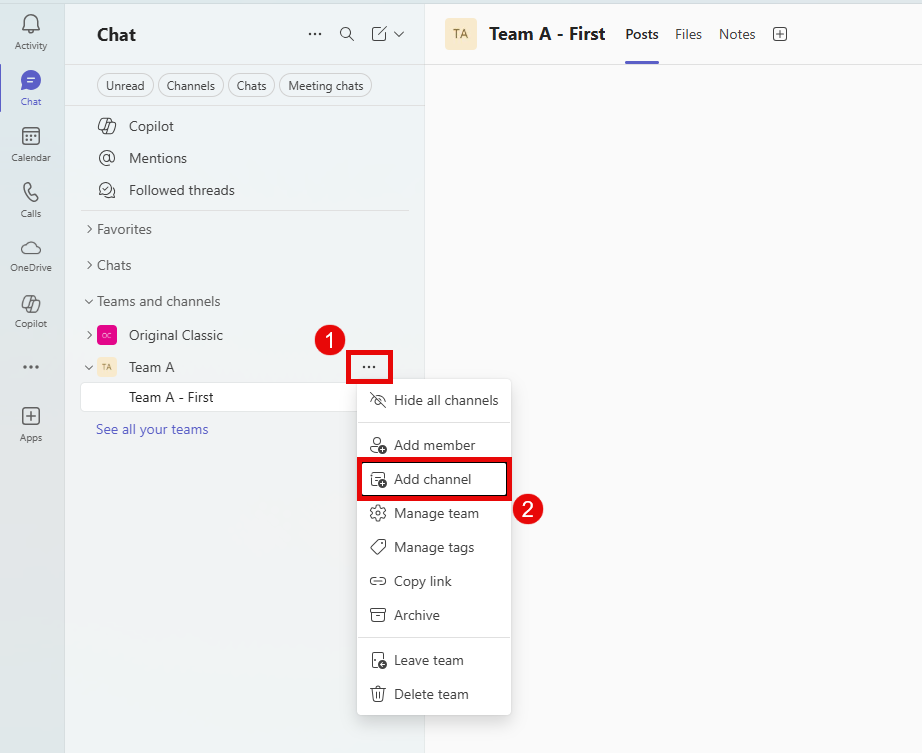
2. Find your team and click the ••• (More options) next to the team name.

3. Select Add channel.
4. Enter:
- Channel name (e.g., Team A – Second)
- Description (optional)
- Channel type
- Standard – Visible to everyone on the team.
- Private – Visible only to selected members.
- Shared – Shared with people from other teams.
- Layout
- Threads – Chat with replies on the side in threads.
- Posts – Posts reorder by most recent reply.
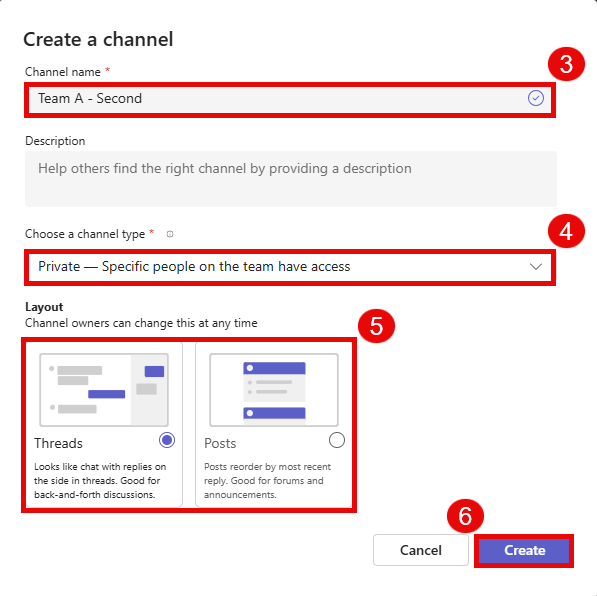
5. Add members to your Channel (by name or email).

end