
Completing the Delivery Order (DO) checkout is very important to keep your outlet’s stock levels accurate. You must do the DO checkout when the delivery team comes to pick up the goods.
If you forget to do the DO checkout after the goods are taken, the system will still show those items as being in your outlet. If anything goes missing during delivery, you will be responsible for the loss.
1. Login into the ARMS backend portal (https://pos.ocsports.com.my)
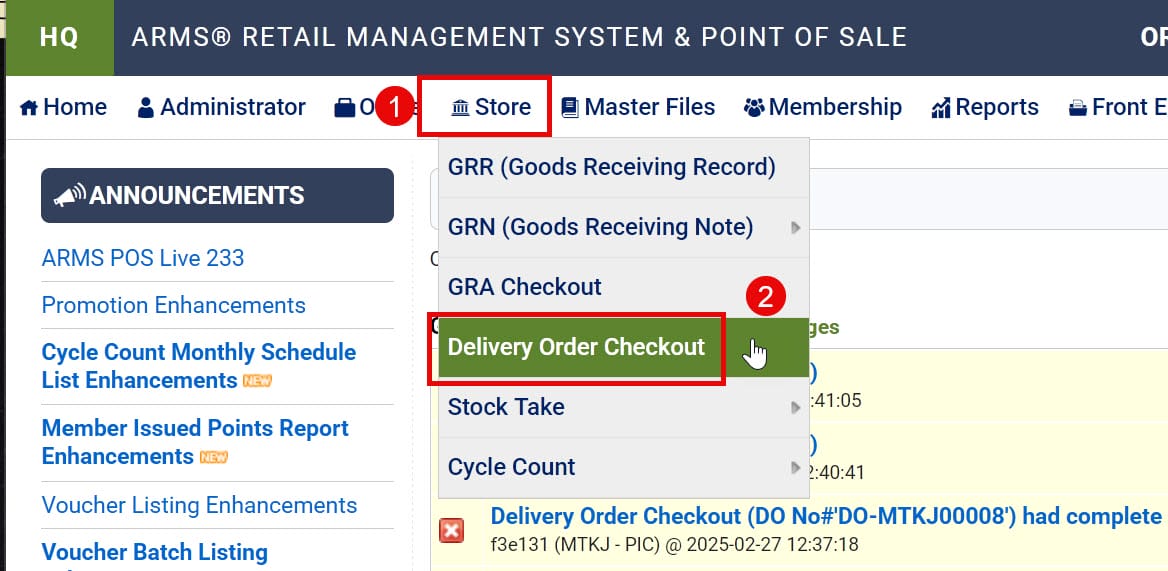
2. Then go to the Store > Delivery Order Checkout
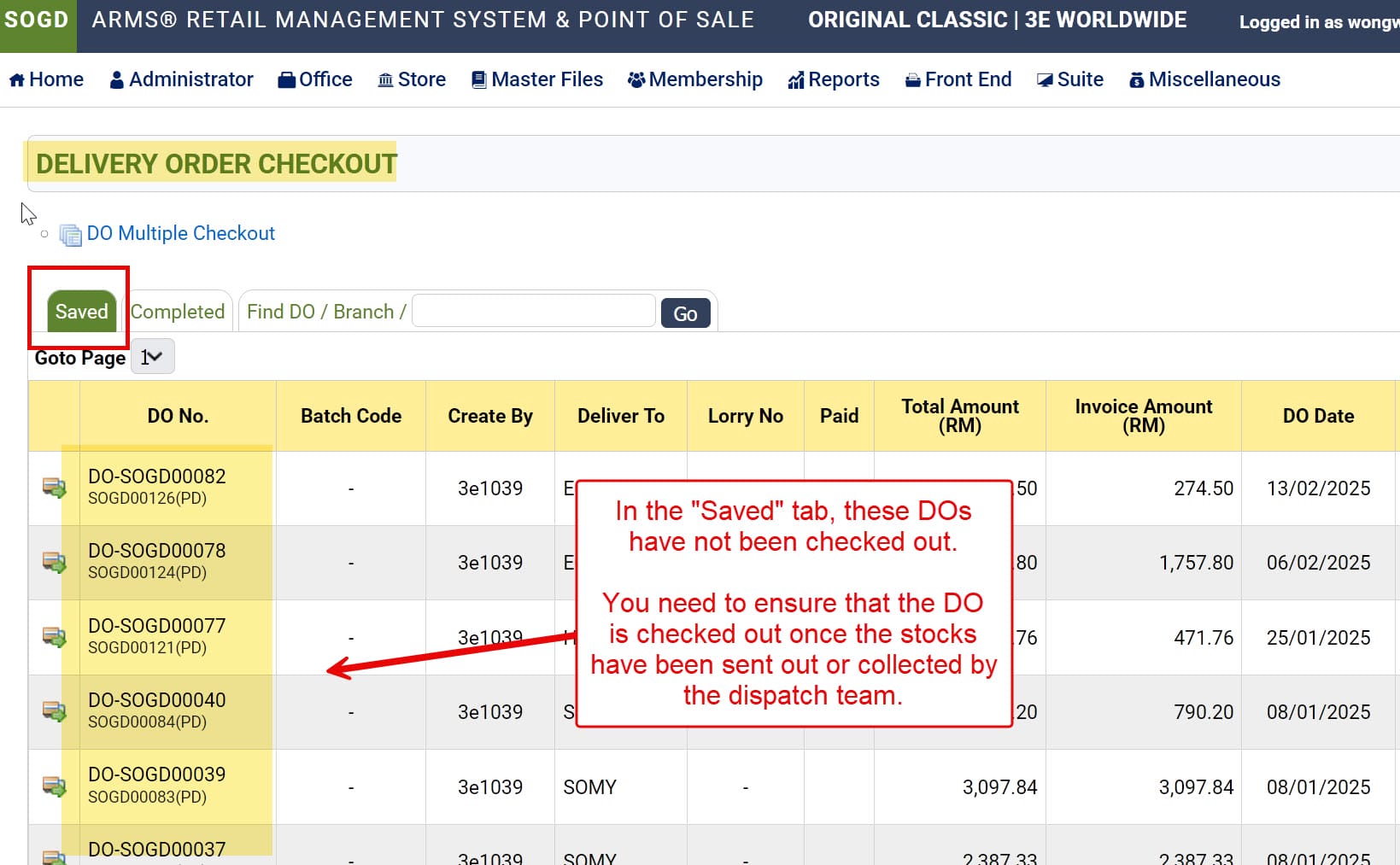
3. In the “Saved” tab, these DOs have not been checked out. You need to ensure that the DO is checked out once the stocks have been sent out or collected by the dispatch team.
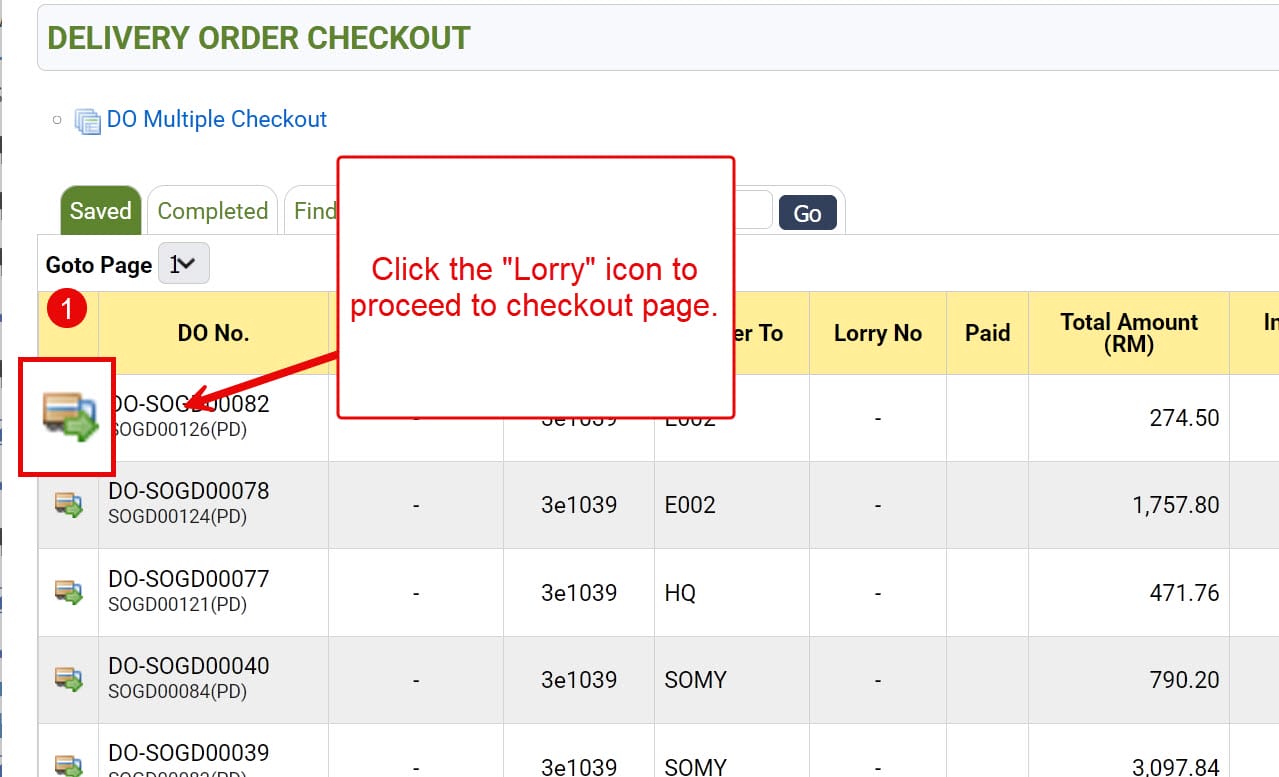
4. Click the Lorry icon to proceed to checkout page.
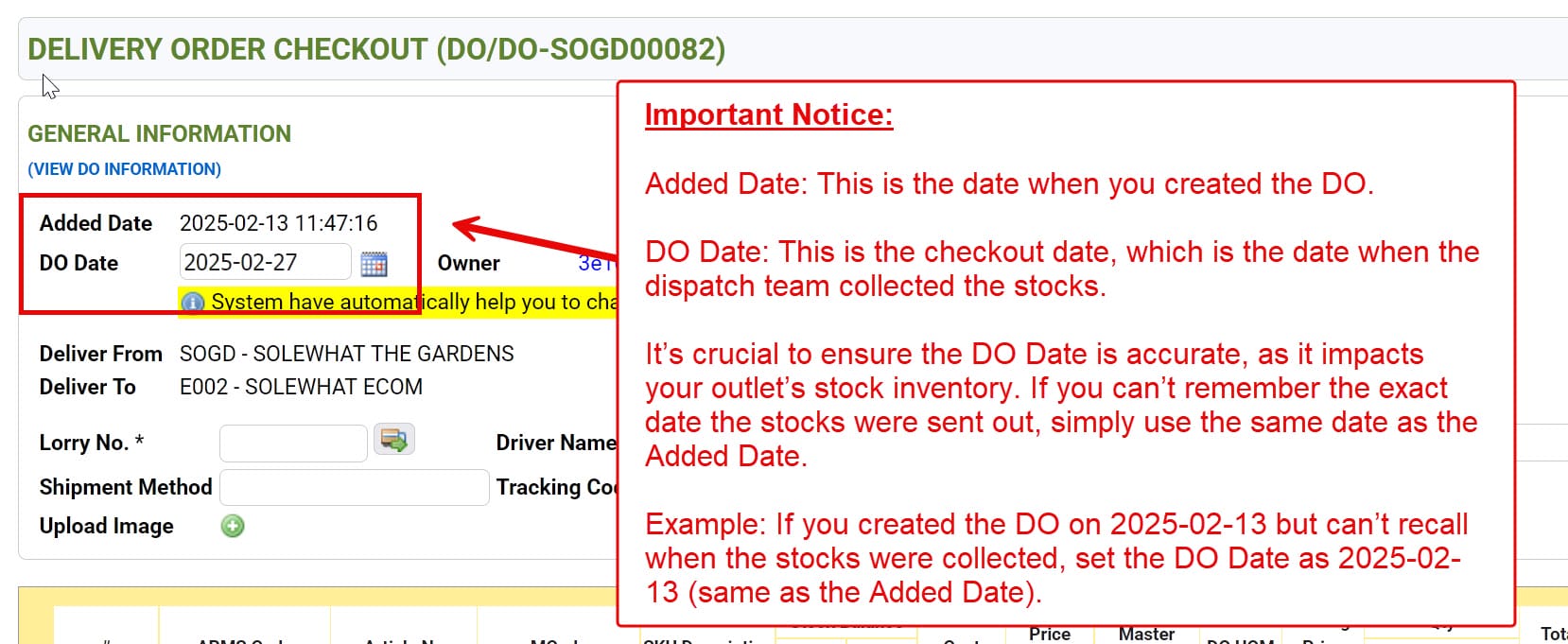
Important Notice:
Added Date: This is the date when you created the DO.
DO Date: This is the checkout date, which is the date when the dispatch team collected the stocks.
It’s crucial to ensure the DO Date is accurate, as it impacts your outlet’s stock inventory. If you can’t remember the exact date the stocks were sent out, simply use the same date as the Added Date.
Example: If you created the DO on 2025-02-13 but can’t recall when the stocks were collected, set the DO Date as 2025-02-13 (same as the Added Date).
5. Fill up the required information:
1. DO Date: This is the checkout date, date when the dispatch team collected the stocks.
2. Lorry No.
3. Driver Name
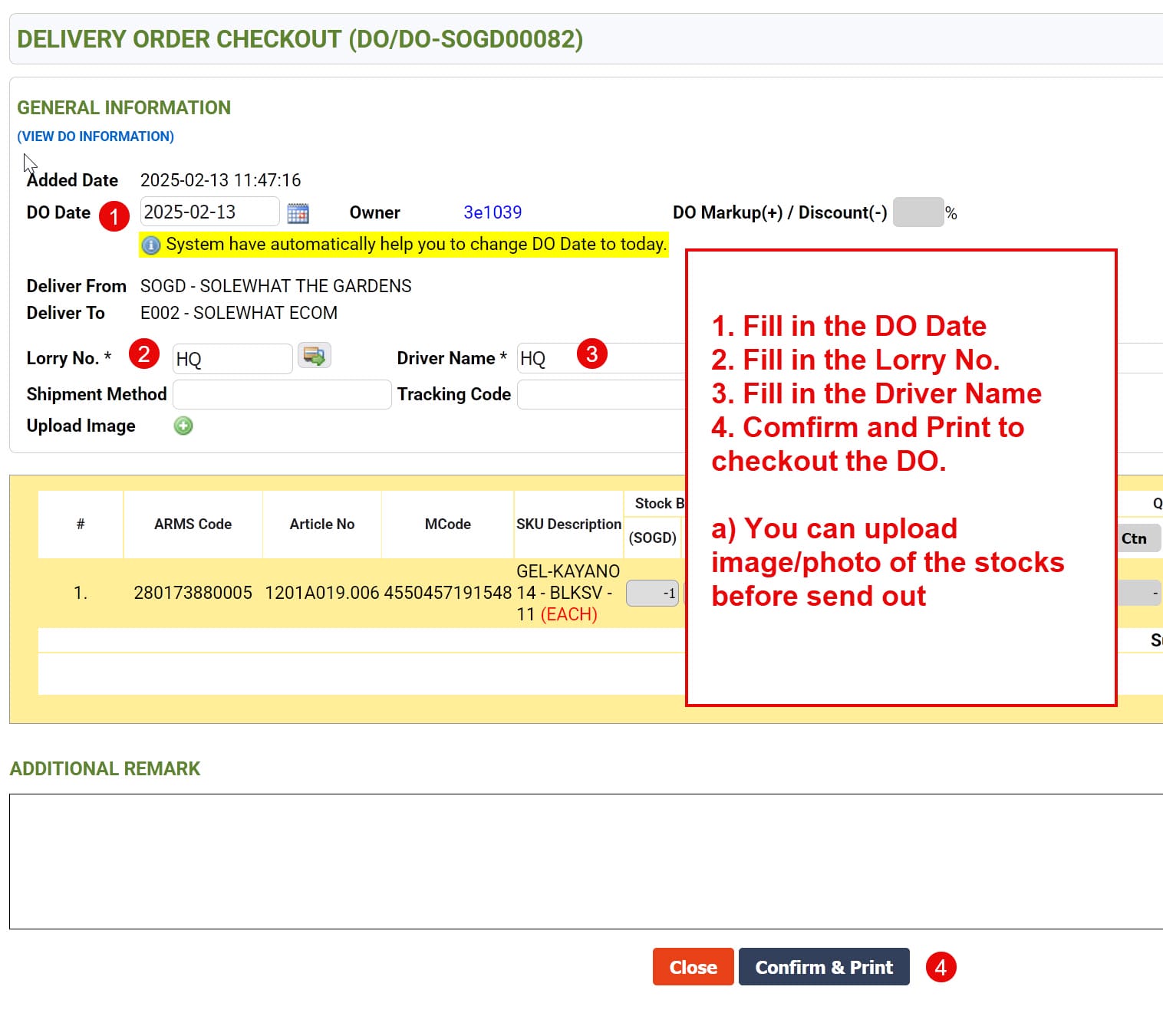
6. Click Confirm & Print to checkout and print the DO and Invoice.
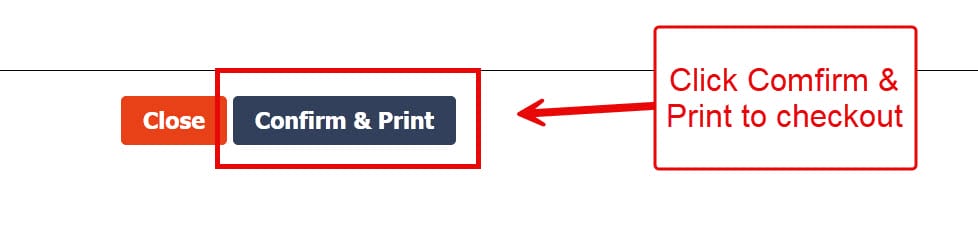
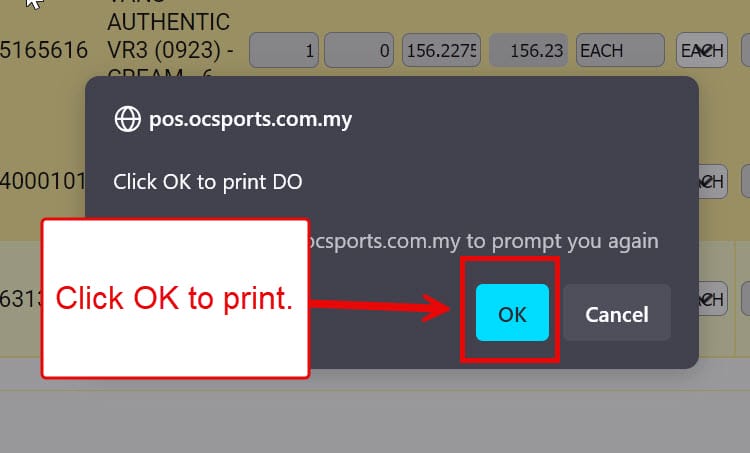
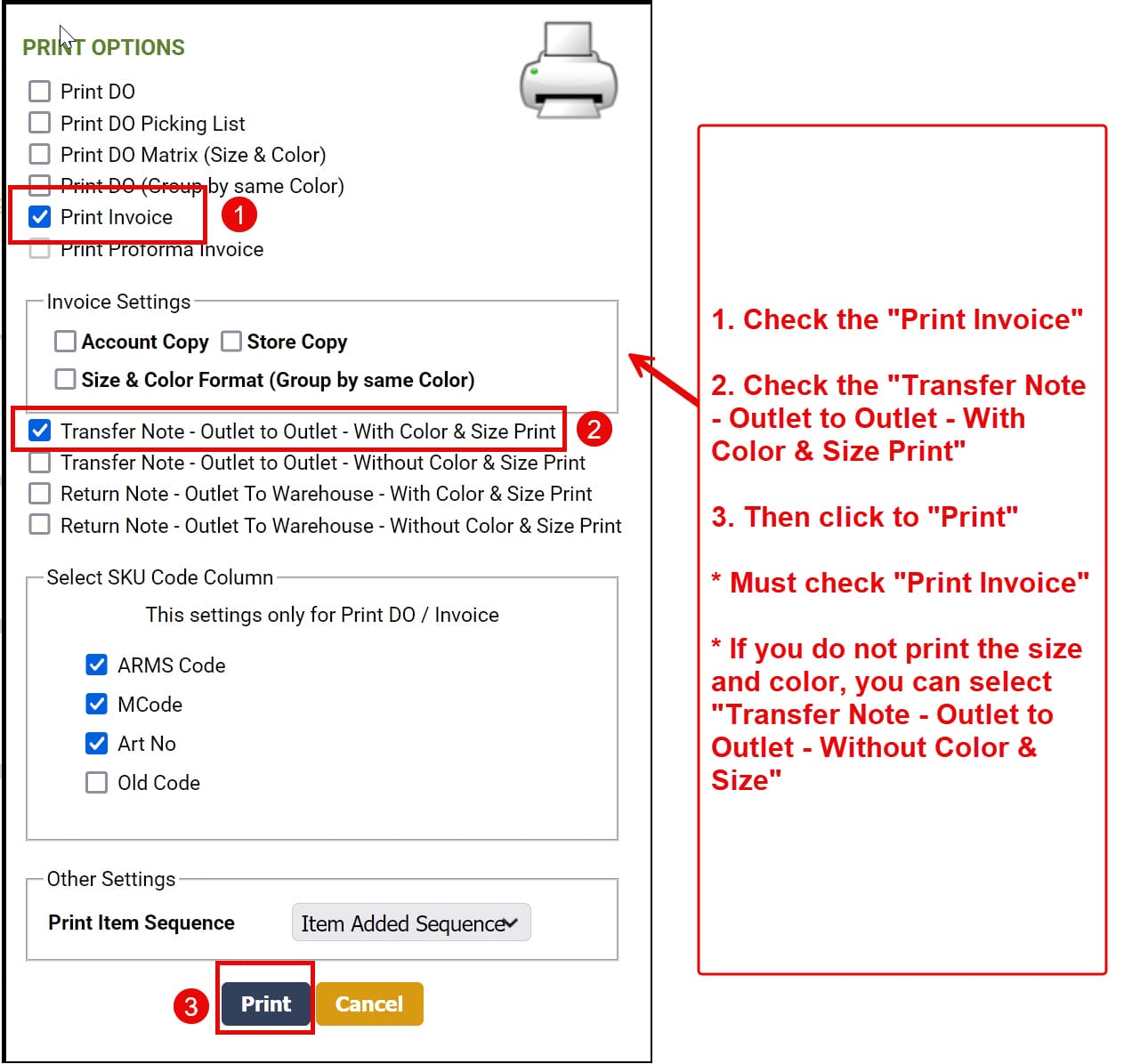
7. At the printing page, please make sure you check “Print Invoice” and “Transfer Note – Outlet to Outlet – With Color & Size”
* You do not need to provide the printed invoice copy to the dispatch/driver, only provide the DO Checkout copy (Transfer Note)
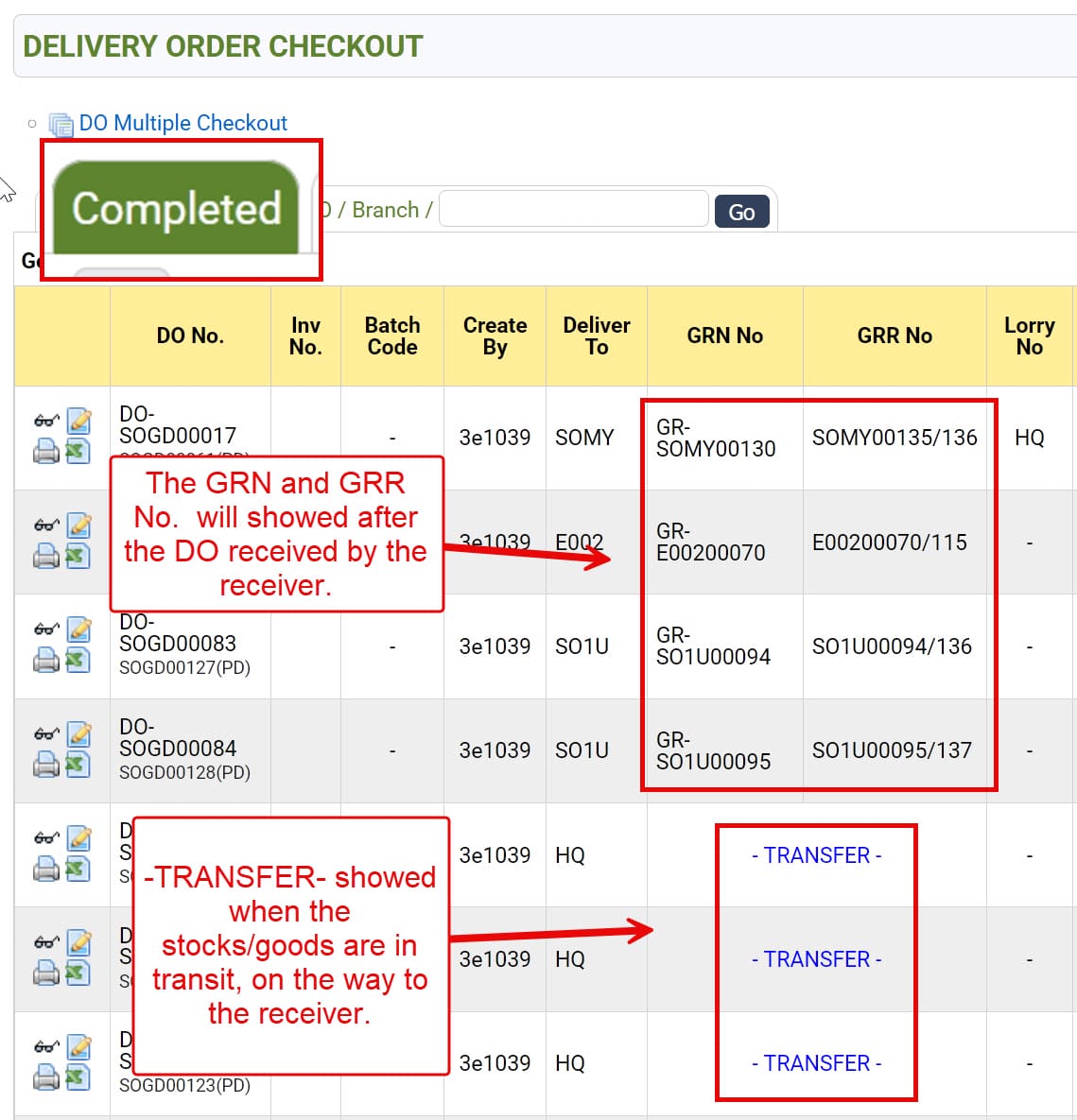
8. After checkout the DO, you can check the status by go to the “Completed” tab.
– The GRN and GRR No. will show after the DO received by the receiver
– -TRANSFER- showed when the stocks/goods are in transit, on the way to the receiver.
end